Skip to content
GEAREDGAMING

HUB 03 · Best Value

Is OLED Burn-In a Problem for Gaming?

It is a real risk, it is not the certainty the forums imply, and whether it applies to you depends almost entirely on one thing: how many hours a day the same bright element sits in the same place.

By Stephen V.Updated How we research
#ad

We earn a commission when you buy through our Amazon links, at no extra cost to you. It never affects our rankings, and we say so when the cheaper product is the better buy. How this works.

Short answer: for a monitor used mostly for games and video, with varied content and sensible desktop habits, burn-in is a manageable risk that current panels and warranties take seriously. For a monitor that spends eight hours a day showing the same taskbar, the same spreadsheet and the same IDE, it is a genuine and foreseeable problem, and you should buy an LCD. The variable that decides which of those you are is hours of static content, not total hours of use.

This is the question that stops more OLED purchases than price does, and it deserves a better answer than either “it is solved” or “never buy one”. Both are wrong, and the people giving each answer usually use their monitors in completely different ways.

What burn-in actually is

An OLED pixel makes its own light by passing current through an organic compound, and that compound degrades as it is used. Every pixel dims slowly over its life. That by itself is not the problem — if all the pixels dim at the same rate, the screen simply gets slightly less bright and you never notice.

Burn-in is uneven degradation. If one region of the panel displays a bright, static, high-contrast element for thousands of hours while the region next to it displays varied content, the first region wears faster and eventually a faint ghost of that element becomes visible on uniform backgrounds. The classic examples are a taskbar, a channel logo, a persistent health bar or a bright white window frame.

Two consequences follow, and they are the two things most discussions miss. First, it is cumulative and gradual, not an event — nothing “burns in” in an evening. Second, it is driven by brightness and staticness, not by being an OLED per se. A dim, moving image ages the panel evenly; a bright, motionless one does not.

What the panels do about it

Every current OLED monitor ships with a stack of countermeasures, and they are more than marketing.

  • Pixel shifting. The whole image moves by a pixel or two on a slow cycle, so the edge of a static element is not always over the same pixel. Invisible in use, and it meaningfully spreads the wear from sharp boundaries.
  • Logo and static-area dimming. The panel detects a bright region that has not changed and reduces its brightness. This one you can occasionally notice, and it is the most common complaint about OLED panel care rather than about burn-in.
  • Automatic panel refresh / compensation cycles. A short routine that runs when the monitor goes to standby, measuring and compensating for uneven wear. The important practical note: it only runs if you let the monitor sleep rather than cutting power at the wall. Do not interrupt it.
  • Heatsinks and conservative brightness limits. Less visible, but part of why a 2026 panel is not a 2020 panel on this issue.

RTINGS runs a long-term accelerated burn-in investigation on real panels and publishes the results as they accumulate. It is the single most useful independent source on this question, and it is worth reading rather than taking anyone's summary of it, including ours.

What the warranties say

The strongest practical signal that the manufacturers consider this a managed risk is that they now underwrite it. Burn-in was historically excluded as “image retention caused by use”; on current gaming OLEDs the major brands include a specific burn-in term in the monitor warranty. Check the exact wording on the listing and the manufacturer's own warranty page for the model you are buying — the length and the conditions vary by brand and by region, and the coverage is on the panel, not on a monitor you ran at maximum brightness with every panel-care feature disabled. The LG, MSI and Samsung support sites are the authority for their own terms.

The habits that actually matter

If you buy one, these are the changes worth making. They take about ten minutes once.

Auto-hide the taskbar, and use a dark theme. The taskbar is the single most common burn-in pattern on a desktop monitor because it is bright, static and present in every session. Hiding it removes the problem entirely. A dark system theme reduces the brightness of every other persistent UI element at the same time.

Set a short screen blank, and let the monitor sleep. Two or three minutes of inactivity. This is also what lets the compensation cycle run.

Do not run at maximum brightness all day. Wear scales with brightness. A panel at a comfortable indoor level ages far more slowly than one pinned at maximum, and in a controlled-light room you do not need maximum anyway.

Leave the panel-care features on. People turn off logo dimming because they noticed it once. The feature exists because the thing it prevents is worse.

Vary what is on screen. Mostly automatic if you game and watch video. It stops being automatic if the same game with the same HUD is the only thing you play for forty hours a week, which is a real pattern worth being honest with yourself about.

So should you buy one?

A quick self-test. Count the hours per day that a bright, unchanging element — taskbar, IDE sidebar, spreadsheet grid, stream dashboard — occupies the same part of your screen. Under about two hours and the risk is low enough that we would buy the OLED without hesitating. Between two and five, buy it but follow the habits above. Over five hours a day, every working day, for years: buy an LCD and spend the difference on something else. That is not a dodge, it is the actual decision boundary.

If the answer is OLED, our best OLED gaming monitors page has the full ranking. If the answer is LCD, the mini-LED panels on our best HDR gaming monitors page get you much of the contrast with none of this worry, and a fast IPS from best 1440p gaming monitors is the straightforward option. The three picks below are the short version of both answers: the two OLEDs we would actually buy, and the IPS that sidesteps the question entirely.

One last thing worth separating out, because it causes a lot of false alarms: temporary image retention is not burn-in. A faint ghost that appears after a long static session and fades within minutes or after a panel-refresh cycle is normal and reversible on both OLED and LCD. Permanent burn-in does not fade. If you are chasing an artifact that comes and goes, our monitor ghosting guide and monitor flickering guide are more likely to be the right pages.
The short answer

Quick picks

#ProductBest forScorePrice
01
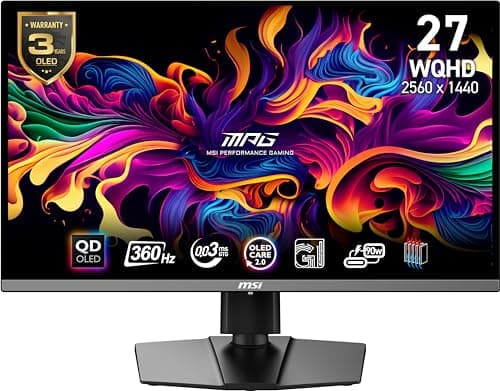
MSI MSI MPG 271QRX QD-OLED
MSI MPG 271QRX QD-OLED

Per-pixel black levels and 360Hz on the same panel. This is where HDR stops being a feature and starts being the reason you bought the monitor.

Best OLED HDR at 1440p
8.4
$579.99 on Amazon →
02
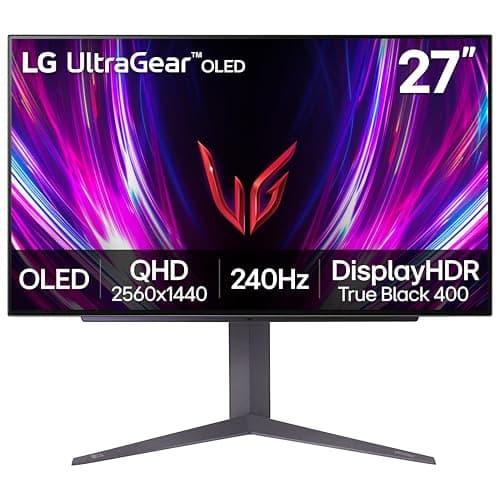
LG LG UltraGear 27GS93QE OLED
LG UltraGear 27GS93QE OLED

OLED at the very top of this budget. Once you've seen the black levels and the motion clarity, IPS looks broken.

Best in class
8.4
$499.99 on Amazon →
03
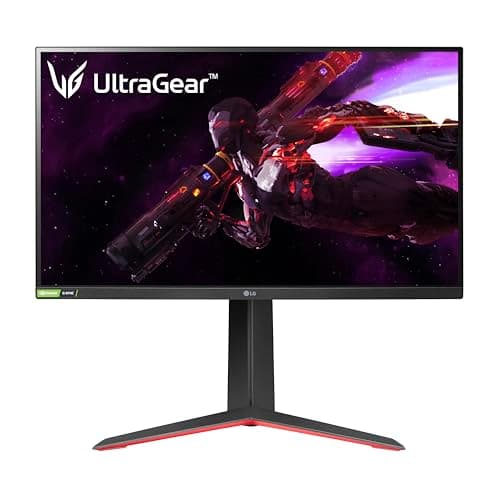
LG LG UltraGear 27GP850-B
LG UltraGear 27GP850-B

The sensible high-refresh IPS pick. Fast, color-accurate, and it leaves money in the budget for the rest of your setup.

Best sensible high-refresh
8.2
$359.99 on Amazon →

#ad · Live prices from the Amazon Creators API, as of October 5, 2026. Where we have no verified live price, we show none — we would rather leave a gap than print a number that has rotted.

In detail

The picks, in full

01
MSI MSI MPG 271QRX QD-OLED

Best OLED HDR at 1440p

MSI MPG 271QRX QD-OLED

27"2560x1440 QD-OLEDDisplayHDR True Black 400MSI rates 360Hz / 0.03ms
8.4/10

Per-pixel black levels and 360Hz on the same panel. This is where HDR stops being a feature and starts being the reason you bought the monitor.

Panel quality
10
Build quality
8
Ergonomics
8
Features
9
Value
7

Pros

  • OLED controls light at every individual pixel, so there are no dimming zones to bloom and no halo around a bright object on black — the failure mode every mini-LED on this page has
  • 0.03ms rated response and 360Hz make it a genuine competitive panel as well as an HDR one, which the mini-LEDs above are not
  • USB-C alongside HDMI and DisplayPort, with height and tilt adjustment as standard

Cons

  • OLED peak brightness on a full white screen is much lower than a mini-LED, so it is the weaker choice in a bright, sunlit room
  • Burn-in remains the honest long-term risk with static game HUDs and desktop taskbars, mitigated by panel-care features rather than eliminated
  • Costs more than double the cheapest real-HDR panel on this page

Don't buy this if…

…your desk faces a window or you leave a static HUD or spreadsheet on screen for hours a day. Those are the two conditions OLED handles worst, and a mini-LED avoids both.

$579.99View on Amazon

$629.998% off

Price as of October 5, 2026. Prices change — Amazon's is the one that counts.

#ad · we may earn a commission from this link to MSI MPG 271QRX QD-OLED

02
LG LG UltraGear 27GS93QE OLED

Best in class

LG UltraGear 27GS93QE OLED

27" OLED2560x1440LG rates 240Hz / 0.03msHDR
8.4/10

OLED at the very top of this budget. Once you've seen the black levels and the motion clarity, IPS looks broken.

Panel quality
10
Build quality
8
Ergonomics
8
Features
9
Value
7

Pros

  • Per-pixel OLED black levels and color that no IPS or VA panel on any cheaper page can approach
  • 240Hz with near-instant pixel response makes fast motion genuinely clearer, not just higher-numbered
  • The single biggest 'wow' upgrade you can make to a desk under $500

Cons

  • It eats the whole budget — there is nothing left for anything else
  • OLED carries a burn-in risk with static HUDs and taskbars over years of use; mind the care features
  • Full-screen brightness is lower than a bright LCD, so a sun-blasted room isn't ideal

Don't buy this if…

…you leave static UI on screen for hours daily, or you play in a bright room. A high-refresh IPS like the 27GP850 sidesteps burn-in worry and gets brighter.

$499.99View on Amazon

$899.9944% off

Price as of October 5, 2026. Prices change — Amazon's is the one that counts.

#ad · we may earn a commission from this link to LG UltraGear 27GS93QE OLED

03
LG LG UltraGear 27GP850-B

Best sensible high-refresh

LG UltraGear 27GP850-B

27"2560x1440 Nano IPSLG rates 165Hz (180 OC) / 1msG-Sync compatible
8.2/10

The sensible high-refresh IPS pick. Fast, color-accurate, and it leaves money in the budget for the rest of your setup.

Panel quality
8
Build quality
8
Ergonomics
8
Features
8
Value
9

Pros

  • Nano IPS color and viewing angles with a genuinely fast response for an LCD
  • 165Hz (overclockable) with variable refresh, so competitive play stays smooth and tear-free
  • Costs well under the budget cap, freeing money for a mouse, headset or keyboard

Cons

  • IPS blacks are gray next to the OLED — in a dark room the difference is obvious
  • HDR is nominal; there's no meaningful local dimming
  • Nothing about it is exciting — it's the reliable choice, not the showpiece

Don't buy this if…

…contrast and dark-room punch matter most to you. IPS can't match OLED blacks — if that's the priority, stretch to the 27GS93QE.

$359.99View on Amazon

Price as of October 5, 2026. Prices change — Amazon's is the one that counts.

#ad · we may earn a commission from this link to LG UltraGear 27GP850-B

How we picked

We do not run a testing lab

We researched published specifications, third-party lab measurements, manufacturer documentation and aggregated owner reviews, then scored each product against a published rubric. The scores are judgments from documented research — they are not measurements we took, because we do not have a lab and we are not going to pretend we do. Where a number came from someone else's lab, we name them and link them in Sources.

Questions

Frequently asked

Is OLED burn-in a problem for gaming monitors in 2026?
It is a real but manageable risk for most gamers, and a genuine problem for people who leave the same bright static interface on screen for many hours a day. Current panels use pixel shifting, static-area dimming and automatic compensation cycles, and the major brands now include burn-in coverage in the monitor warranty — but mitigation is not elimination.
How long does it take for an OLED monitor to burn in?
There is no single number, because it depends on brightness, how static the content is and how much of the time that element is on screen. It is cumulative over thousands of hours rather than an event — nothing burns in overnight. The useful way to think about it is hours per day of bright static content, not total hours of use.
Does the Windows taskbar cause OLED burn-in?
It is the most common cause on a desktop monitor, because it is bright, unchanging and present in every session. Auto-hiding the taskbar removes the problem, and switching to a dark system theme reduces the brightness of other persistent interface elements at the same time. Both take a minute and are the highest-value habits on the list.
Do OLED monitor warranties cover burn-in?
On current gaming OLEDs from the major brands, generally yes — burn-in has moved from an explicit exclusion to a specific covered term. The length and conditions vary by brand and region, and coverage assumes the panel-care features were left on. Check the warranty wording for the exact model on the manufacturer's own site before buying.
Is image retention the same as burn-in?
No. Temporary image retention is a faint ghost that appears after a long static session and fades on its own or after a panel-refresh cycle; it happens on LCDs too and it is not damage. Burn-in is permanent uneven wear that does not fade. If your artifact comes and goes, it is almost certainly retention rather than burn-in.

Keep reading

Receipts

Sources

We do not run a testing lab, and we do not pretend to. Where a measured number came from someone else's lab, we name them and link them. Where we could not verify something, we say so on the page rather than quietly leaving it out. Read our full method.