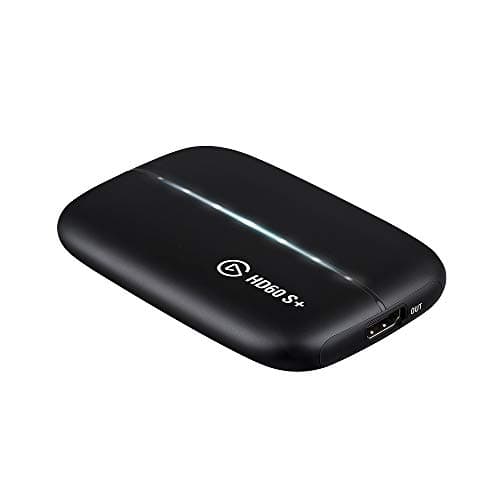
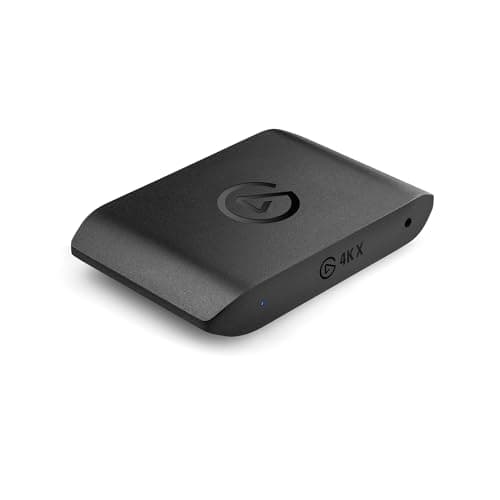
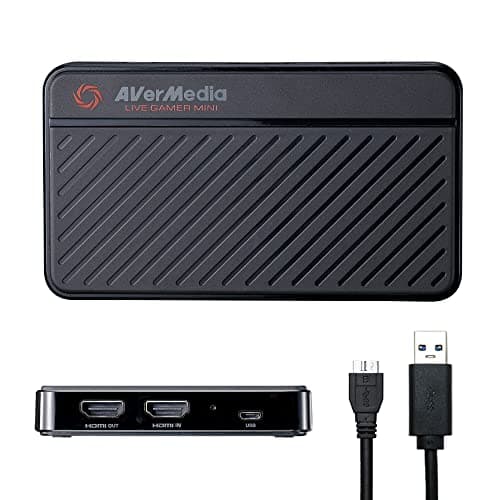
The cable order is: console HDMI out → capture card HDMI IN. Capture card HDMI OUT → your TV or monitor. Capture card USB → your PC. Then add it in OBS as a “Video Capture Device” source. Almost every capture problem that is not a cable in the wrong socket comes down to three settings: HDCP on the console, the resolution the console is outputting, and whether your card's pass-through supports that resolution.
A capture card does one job: it takes an HDMI signal that was going to a television and makes a copy of it available to a computer as a webcam-like video device. Everything confusing about them follows from the fact that the signal has to keep going to the television at the same time, and from the copy protection that is specifically designed to stop what you are doing.
Step 1: get the cable order right
Three connections, and the order is not interchangeable.
- Console HDMI out → the card's HDMI IN. This is the signal being captured.
- The card's HDMI OUT → your TV or monitor.This is pass-through: the card copies the signal straight back out so you can still play on the big screen with no added delay. If your card has no HDMI OUT — the Elgato Cam Link 4K, for example, is a camera input rather than a game capture card — it cannot do this, and you would be playing on the preview window, which is a bad idea.
- The card's USB → your PC. Use a USB 3.0 port, the blue one, and avoid a hub for the first attempt. Most capture problems that look like driver faults are a card on an overloaded USB bus.
Use the HDMI cable that came in the box for the first try. A marginal cable that works fine at 1080p60 will drop out at 4K, and chasing that is a bad use of an evening.
Step 2: understand pass-through before you buy or blame
Pass-through and capture are two different specifications on the same card, and conflating them is the most common buying mistake in this category.
Capture is what your PC records: the resolution and frame rate your viewers see. Pass-through is what your TV gets: what yousee while playing. A card can capture at 1080p60 while passing 4K60 through to your TV, which is exactly what the Elgato HD60 S+ does — and for most people that is the right combination, because almost nobody streams at 4K.
The practical rule: your card's pass-through must support whatever your console and TV are capable of together, or the console drops to a mode the card can pass. A 4K120 TV plus a card with 4K60 pass-through means you play at 4K60. That may be completely fine. It is only a problem if you did not know. Our do you need a capture card guide covers the prior question of whether you need one at all — if you stream PC games from the same PC, usually you do not.
Step 3: the HDCP setting (the black screen)
If you get audio but a black screen, or OBS shows nothing while your TV is fine, this is almost always HDCP — the copy protection on the HDMI signal. A capture card is not allowed to copy a protected stream, so it shows black.
On a PlayStation 5 there is a setting to disable HDCP for gameplay; the PlayStation support site documents where it lives in the current system software. Turn it off and the picture appears. Note that it will switch itself back on for protected video apps — streaming services will not capture, and that is working as designed rather than a fault. Xbox consoles do not require the same step for gameplay; Xbox Support has the output configuration documentation if your resolution looks wrong.
Step 4: add it in OBS
In OBS, add a source of type Video Capture Device and pick the card from the dropdown. Two settings inside that dialog decide whether it works well:
- Resolution/FPS Type. Set it to Custom and choose the resolution and frame rate explicitly rather than leaving it on Device Default. Default frequently negotiates something odd.
- Video Format.If the preview is choppy or the colors look wrong, try a different format here — NV12 and YUY2 behave differently per card, and this is the first thing to change.
Add the audio the same way. Many cards present their audio as a separate device; if you hear nothing, check whether the card's audio is arriving on the video source (there is a “Use custom audio device” checkbox) or as its own input. OBS's own help documentation is the right reference when something specific misbehaves.
Step 5: set the stream to something the platform actually wants
This is where people over-reach. Both Twitch and YouTube publish recommended resolution and bitrate tables, and they are worth following rather than guessing, because exceeding the recommended bitrate for your resolution mostly produces buffering for your viewers rather than a better picture. 1080p60 at the platform's recommended bitrate is the right default for almost everyone, which is also why a 1080p60 capture card is the right default.
Match your OBS canvas and output resolution to what you are actually streaming. Downscaling a 4K capture to a 1080p output costs CPU or GPU time for no visible gain if the source was going to be viewed at 1080p anyway.
When it still does not work
In the order worth trying: move the card to a different USB 3.0 port directly on the motherboard; swap the HDMI cable; set the console to a lower, fixed output resolution to see whether the problem is bandwidth; confirm HDCP; and check whether another application — a previously-open OBS, a browser tab, the card's own capture utility — has already claimed the device. A capture card can usually only be used by one program at a time, and “the device is in use” is the most-missed cause of a black preview.
If the picture is fine but the stream looks soft or stutters, that is an encoding problem rather than a capture problem, and our what you need to start streaming guide covers the rest of the chain. If your monitor is the thing misbehaving rather than the capture, how to fix monitor no signal and how to fix monitor flickering are the right pages.
Which card to buy for the setup you just read
Three picks, matched to the three situations the pass-through rule produces. If your TV is 1080p or you simply do not care about playing in 4K while you stream, the cheap 1080p60 card does everything described above. If your TV is 4K60 and you stream at 1080p — the most common setup — you want 1080p capture with 4K60 pass-through. And if you game on a 4K high-refresh TV and refuse to give that up while capturing, you need a card with HDMI 2.1 pass-through, which is the expensive end.
The full field, including the camera-input option and the HDMI 2.1 alternatives, is on our best capture cards for streaming page.