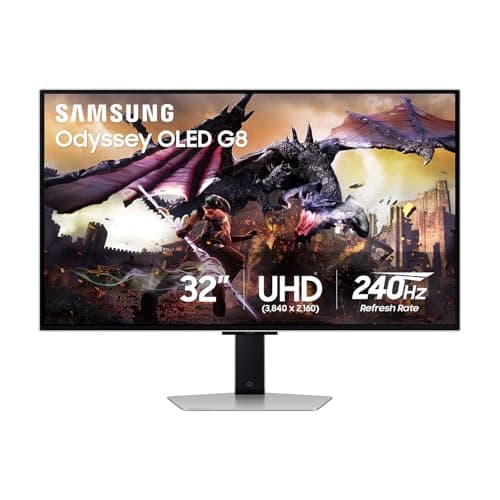
If your budget and your graphics card can both reach it, buy the Samsung Odyssey OLED G8. A 32-inch 4K QD-OLED is the best-looking thing you can put on a desk, and nothing on any cheaper page comes close to how it renders a dark scene. But that sentence has two conditions in it, and the second one is the one that catches people out. A 4K monitor is not the expensive part of a 4K setup — the card that has to draw four times the pixels of 1080p is. If your GPU is mid-range, a fast IPS panel here, or a 1440p screen from our under-$500 page, will feel quicker and cost you less regret.
The real price tag on a 4K monitor is bolted inside your PC
This is the whole article, so we will say it first and plainly. 4K is 3840×2160 — four times as many pixels as 1080p, and roughly 2.25 times as many as 1440p. Every one of those pixels has to be drawn, several dozen times a second, by your graphics card. The monitor does not do that work; the GPU does. That means the moment you decide to game at 4K, you have quietly signed up for a much more expensive graphics card than a 1080p or 1440p player needs, whether or not anyone told you so at the till.
The failure mode is specific and it is common. Someone buys a beautiful 4K panel, pairs it with a card that can only really push 1440p, and then has to drop the in-game resolution to keep the frame rate playable. Now they are running a 1440p (or upscaled) image on a screen they paid a 4K premium for — softer than a native 1440p monitor would have shown, on hardware that cost more. They bought the resolution and gave it straight back to keep the game smooth.
So the honest first question is not “which 4K monitor?” It is “can the card I already own feed 4K at a frame rate I will actually enjoy?”If the answer is a confident yes, this page is for you and the only remaining decisions are panel type, size and how much you want to spend. If the answer is no, be honest with yourself: spend the money on the GPU first, run 1440p until you upgrade, and come back to 4K when the silicon behind it can keep up. Modern upscalers help — rendering below 4K and reconstructing up to it is genuinely good now — but they are a way to make a strong card feel stronger, not a way to make a weak one keep pace.
OLED versus IPS is the only panel decision that matters at 4K
At this resolution the sharpness argument is over — every panel here is 4K and they are all crisp. What actually separates them is the panel technology, and it comes down to two families.
OLED (the Samsung G8 here is QD-OLED) lights every pixel individually and switches each one fully off for black. That is why an OLED in a dark room looks like nothing else: the black parts of the image are the panel being genuinely off, not a backlight leaking gray through a closed shutter. Contrast is effectively per-pixel, color is vivid, and motion is exceptionally clean because the pixels change state almost instantly. It is the best image in gaming, full stop.
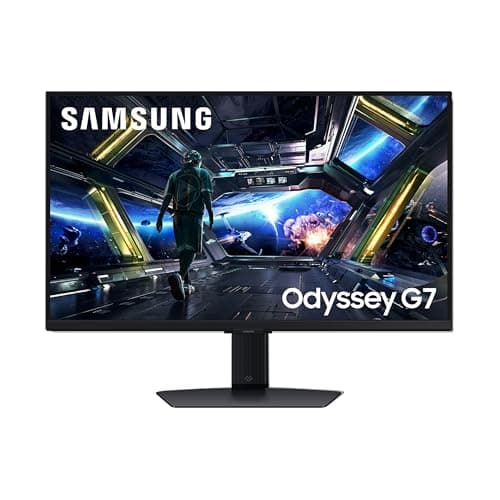
IPS (the Samsung G70D, the 28-inch panel, the KTC and the Acer Nitro) is lit by a backlight shining through a liquid-crystal layer. It gives you accurate color, wide viewing angles and fast, clean motion, and it is far cheaper to make at 4K. What it cannot do is a true black: in a dark room the black parts of the image glow faintly gray, because the backlight behind them never fully goes out. For a bright desktop, a colorful game or a well-lit room, most people never notice. In a dim room watching a night scene, the difference between IPS and OLED is night and, quite literally, day.
Here is the honest framing. OLED is the better image and the IPS panels are the better value and the lower-worry choice. If you want the showpiece and you will manage its quirks, the G8. If you want a big, sharp, fast 4K screen that you never have to think about again, any of the IPS panels here does that, and the cheap ones do it for a fraction of the OLED's price. Neither answer is wrong; they are different budgets and different temperaments.
27 versus 32 inches: at 4K, size is about immersion, not sharpness
On a 1440p page, going from 27 to 32 inches costs you sharpness, because you are stretching the same pixels over more glass. At 4K that trade barely exists — there are so many pixels that both a 27-inch and a 32-inch panel look crisp, and the pixel density stays high on either. So the size decision here is cleaner than it is anywhere else: it is purely about how big and immersive you want the screen, not about how detailed it is.
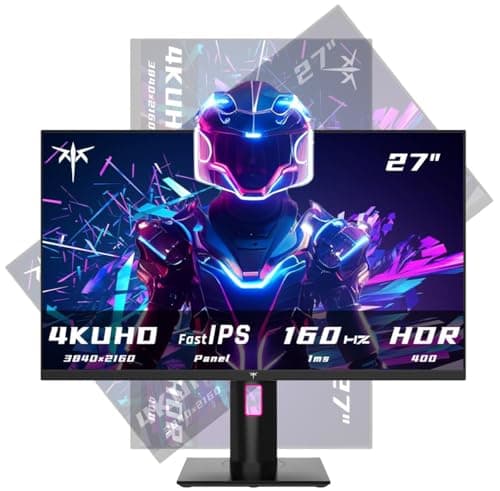
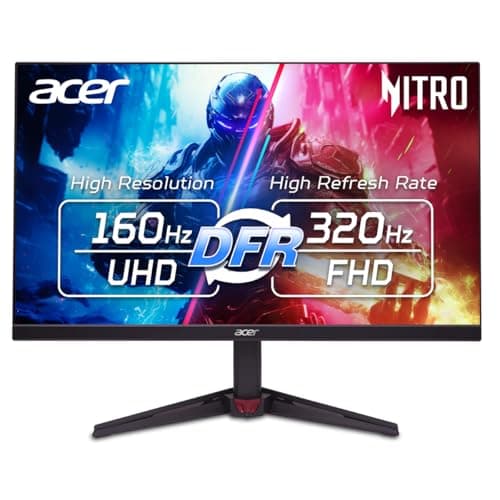
- 27 inches (the KTC and the Acer Nitro) is the highest pixel density here and the easiest to sit close to. It fills your view without dominating the desk, and 4K on a 27 is eye-wateringly sharp. If your desk is shallow or you sit near the screen, this is the size.
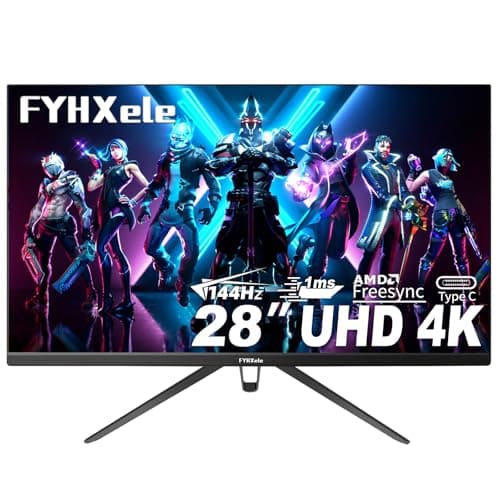
- 28 inches(the generic HDR400 panel) is a small step up in canvas with the same essential character — a touch more presence than a 27 without becoming a piece of furniture.
- 32 inches(the Samsung G70D and the OLED G8) is genuinely immersive and the best size for single-player, cinematic, racing and sim games, where the extra scale pulls you in. It wants a bit more viewing distance and more desk. At 4K it is still perfectly sharp, so you lose nothing on detail by going bigger — you are buying scale, and scale is the whole point of it.
The burn-in question, answered without hand-waving
We are not going to pretend this away, because the OLED G8 is our top pick and burn-in is the one real thing you take on when you buy an OLED. OLED pixels are organic and they age with use; a bright, static element left on screen for hours a day, every day, for a long time can eventually leave a faint permanent ghost. Think of a taskbar, a game HUD, a news ticker or a broadcast logo that never moves and never changes.
Two things are also true. First, modern QD-OLED panels like this one ship with a stack of mitigations — pixel shifting, logo dimming, and automatic compensation cycles that run when you turn the monitor off — and manufacturers now back these panels with burn-in warranties precisely because they expect them to survive normal use. Second, “normal use” is the operative phrase. A mixed-use gaming and media machine, where the image is constantly changing, is a benign life for an OLED. A monitor that displays a spreadsheet with the same toolbar in the same place for eight hours a day is not.
So the burn-in rule is about how you use the screen, not about whether OLED is “safe.”If this is a gaming and entertainment monitor, buy the OLED and enjoy it — hide the taskbar, vary what is on screen, let the compensation cycles run, and you will very likely never see a mark. If it is going to sit on a static desktop or a trading layout for most of its waking life, buy one of the IPS panels here instead. IPS cannot burn in, and that peace of mind is worth more than contrast to a lot of people. This is the single most useful sentence on the page: match the panel to how the screen actually spends its day.
Where each panel here fits
The five monitors on this page are not five versions of the same thing; they are five different answers to “I want 4K.” The Samsung Odyssey OLED G8is the showpiece — the best image, the highest refresh, and the highest price, for the person with the GPU to exploit it and the discipline to manage an OLED. The Samsung Odyssey G7 (G70D) is the safe premium pick short of OLED: a big-brand 32-inch 4K IPS with the warranty, panel consistency and features the bargain screens skip. The 28-inch HDR400 panel is a bigger, brighter-badged value canvas that gives 4K a little more visual punch than a 27 without ballooning. And the KTC 27” and Acer Nitro VG270K V4are the way onto a fast 4K IPS panel without paying a flagship tax — the KTC trades brand support for the saving, while the Acer keeps a mainstream warranty behind it at a similar price.
How to buy a 4K gaming monitor
Settle the graphics card before you settle the monitor
We keep coming back to this because it is the mistake that costs the most money. Work out, honestly, what your card can render at 3840×2160 in the games you actually play, before you fall in love with a panel. If it can drive 4K at a frame rate you will enjoy, wonderful — pick the screen you like. If it cannot, the monitor is not the upgrade you need yet; the GPU is. A 4K panel fed by a card that cannot feed it is money spent on a number you will have to turn down to play.
Choose the panel by the room, not the spec sheet
OLED for the best possible image in a room you can control the light in, and for a screen whose content is always changing. IPS for a bright room, a screen that will show static content for hours, or a budget that will not stretch to OLED. Do not agonize over it — both look superb at 4K, and the deciding factor is genuinely which of contrast or peace-of-mind you value more. There is no wrong answer, only a mismatched one.
At 4K, pick your size for immersion, not detail
Unlike at 1440p, going bigger here does not cost you sharpness — 27 and 32 inches are both crisp at 4K. So choose the size for how you want the screen to feel and how much desk and viewing distance you have. 27 to 28 inches for a close-up, sharp, space-efficient setup; 32 inches for an immersive, cinematic one. Measure your desk depth before you commit to a 32 — a big panel too close to your face is tiring, not impressive. If 32 inches is the size you have settled on, our best 32-inch gaming monitors page ranks that size specifically, including the 1440p options and the pixel-density arithmetic that explains why we do not recommend them as readily at this size.
Real HDR needs the panel to make its own light
HDR is the most abused word on a monitor box, and 4K panels abuse it as freely as any other. An OLED does real HDR effortlessly, because it can make one pixel bright while the one beside it stays fully dark. An IPS panel can only do convincing HDR if its backlight can dim in independent zones — mini-LED — and most 4K IPS panels at sane prices cannot, so their “HDR” badge means little more than that they accept the signal. Read HDR as a real feature on the OLED and, on the IPS panels, treat brighter certifications as a modest bonus rather than a reason to buy.
Refresh rate at 4K is real, but your GPU has to earn it
The high refresh rates these panels advertise are genuine and lovely — but a refresh rate you cannot feed is a refresh rate you will never see. The jump from 60Hz to high-refresh is transformative when your card can actually produce the frames; at 4K, producing those frames is exactly the hard part. Do not pay a premium for the fastest panel unless the graphics card behind it can push frame rates to match, and make sure you connect over a port and cable capable of carrying 4K at high refresh so you are not silently capped below what the panel can do. If you are weighing which refresh tier is worth it, our 144Hz vs 240Hz guide walks through where the returns stop.
If you buy OLED, spend five minutes protecting it
Auto-hide the taskbar. Turn on the panel's pixel-shift and screen-saver features. Let it run its compensation cycle when you power down rather than yanking the plug. None of this is a chore, and it is the difference between an OLED that looks pristine for years and one that carries a faint ghost of your desktop. Manage it and the burn-in risk stays theoretical for the vast majority of owners.
Flat or curved is a taste call, not a quality one
Some 4K panels come curved, some flat, and neither is better — a gentle curve can feel more enveloping on a big 32-inch screen and slightly odd on a smaller one, and that is about the whole of it. If you are unsure which you prefer, our curved vs flat guidelays out who each actually suits. Do not let it override the decisions that matter — GPU, panel type and size come first.
What not to pay for
“1ms” response-time claims measured under conditions the manufacturer picks and not comparable between brands — we could not verify a single one and neither can you. HDR badges on IPS panels with no local dimming behind them. An overclocked refresh rate your graphics card cannot feed at 4K in the first place. Smart-TV apps on a desk monitor you will drive from a PC. Every one of these is a line printed to sell a screen, not to improve your game. Spend on the panel type, the size and, above all, the graphics card that makes 4K worth doing at all.