If your headset is quiet at 100% volume, check these in order: the per-application volume in the Windows volume mixer, the output device actually selected, whether the plug is fully seated in the jack, whether you are using a front-panel jack instead of the rear one, and only then whether the headphone itself is hard to drive. Four of those five are free. The fifth is the only one a DAC or amplifier fixes. People usually try the fifth first, which is how you end up with a $150 amplifier and a game whose in-app slider was at 40%.
Step 1: the volume that is not the volume slider
There are at least four volume controls in the chain on a PC: the system volume, the per-application volume in the mixer, the in-game audio slider, and — on a USB or wireless headset — a hardware dial on the earcup or inline. They multiply rather than override, so a system volume at 100% and an application at 30% gives you 30%.
Open the Windows volume mixer and look at the per-app levels while the game is running. Microsoft’s documentation covers where these live in current Windows versions. Check the in-game slider too: plenty of games ship master volume at well under full, and a handful separate voice, effects and music in ways that make dialogue quiet while explosions are fine.
Also confirm which output device is selected. If Windows is sending audio to your monitor over HDMI and your headset is plugged into the PC, you will hear a thin version of the game from the monitor speakers and assume the headset is broken.
Step 2: enhancements, spatial audio and loudness equalisation
Windows audio enhancements, spatial audio processing and any vendor equaliser all sit in the chain and all can reduce level. Loudness equalisation in particular compresses dynamic range, which makes loud moments quieter — it is designed to stop you being startled, and it reads as “everything is quiet”.
Turn all of it off as a diagnostic. If the volume jumps, you have found your cause and can turn features back on one at a time. Vendor software is worth a specific look here: a virtual surround mode can be noticeably quieter than plain stereo, which is one of the costs our virtual surround vs stereo guide covers.
Step 3: the plug, the jack and the adapter
A 3.5mm plug has to click fully home. Half-inserted is the single most common cause of quiet or one-sided audio, because a TRRS plug that is one contact short lands the signal on the wrong ring. Phone cases, thick laptop chassis and inline splitters all cause it. Push until it clicks, and if there is no click, try the plug in a different device to confirm the plug itself is fine.
Front-panel jacks on desktop PCs are the second common culprit. They run through a long internal header cable, they are frequently wired to a weaker amplifier stage than the rear jacks, and they are where most of the hiss and low-output complaints originate. Try the rear jack on the motherboard. If the headset is dramatically louder there, nothing is broken — your front panel is just weak.
If you are on a console controller or a handheld, the available output power is lower by design. A headphone that is fine on a PC can be genuinely quiet on a controller, and that is a sensitivity problem rather than a fault. Our console connection guide covers the per-platform settings worth checking first.
Step 4: one side quieter than the other
If the imbalance is between ears rather than overall, this is a different problem and our sound in one ear guide is the right page. Two quick checks: the Windows balance slider, which gets knocked by accessibility settings more often than you would expect, and the mesh in front of the driver. A sealed earcup collects earwax and dust on that mesh over months, and a blocked mesh measurably attenuates high frequencies on that side. Our earpad cleaning guide covers doing it without damaging the driver.
Step 5: the headphone genuinely needs more power
This is the real hardware case, and the specification that decides it is not the one most people quote. Impedance in ohms is half the story; sensitivity — how loud the headphone gets for a given input, usually quoted in decibels per milliwatt or per volt — is what decides whether your source can drive it.
A 32-ohm headphone rated at 91dB sensitivity needs real power despite its low impedance. A 250-ohm headphone rated at 104dB is easier to drive than that figure suggests. Gaming headsets are almost always designed to run off anything, so if you are using a headset rather than audiophile headphones, step 5 is probably not your problem. If you are using open-back headphones with a low sensitivity rating, it probably is. Our impedance and amps guide works through the arithmetic, and do you need a DAC answers the question honestly for the majority of people, which is: probably not.
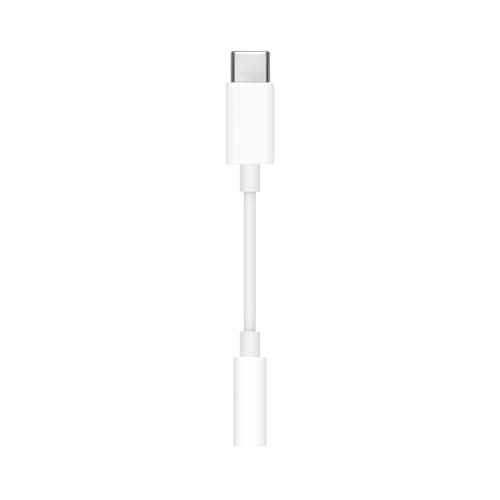
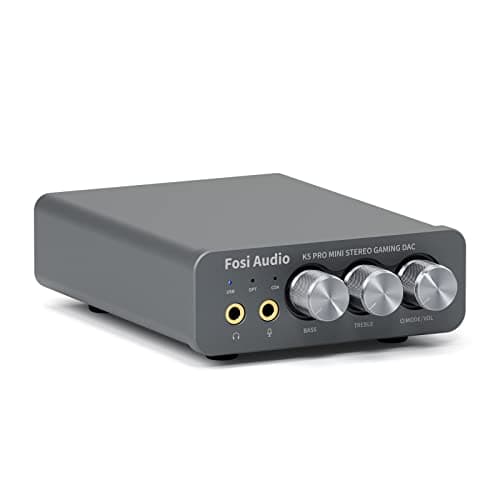
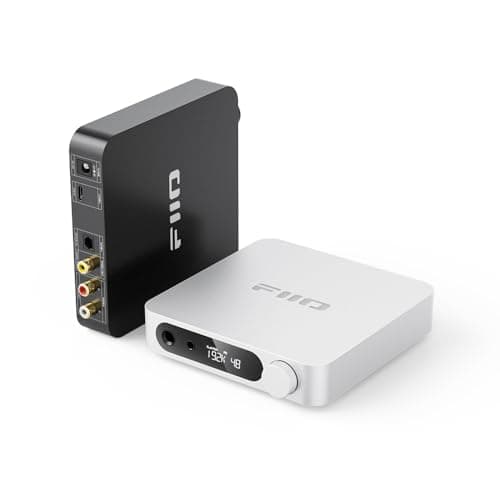
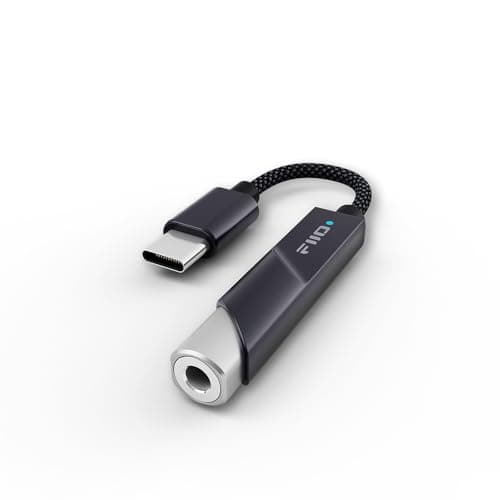
If you have worked through steps 1 to 4 and the headphone is genuinely power-starved, the hardware below is the fix, in ascending order of what it solves. A USB DAC dongle replaces your motherboard’s conversion and amplification with a dedicated chip for the price of a game — that is the right starting point, not the $200 desktop unit. The desktop amplifiers below exist for high-impedance, low-sensitivity headphones, and for desks where you want a volume knob and multiple inputs. Buying one to fix a quiet headset that was actually set to 40% in the volume mixer is the mistake this page exists to prevent.
One thing that is not a fault
Game audio is often mastered at a lower average level than music, so the same volume setting that is loud on a track can feel quiet in a game. This is a mastering-level difference — the same phenomenon behind the loudness war in recorded music — not a hardware problem, and no amount of amplification changes the comparison. If your headset is loud on music and quiet in one specific game, that game’s mix is the variable.