Skip to content
GEAREDGAMING

HUB 03 · Best Value

The Best 144Hz Gaming Monitors

The jump to 144Hz and beyond is the upgrade you feel more than any other in gaming. This page ranks by refresh and motion first — then reminds you to buy only the frames your graphics card can actually feed.

By Stephen V.Updated How we research
#ad

We earn a commission when you buy through our Amazon links, at no extra cost to you. It never affects our rankings, and we say so when the cheaper product is the better buy. How this works.

If you want one recommendation, buy the LG UltraGear 27GS75Q. It is 27-inch 1440p IPS, runs well past 144Hz, and sits on a stand that adjusts properly — the most complete high-refresh package for the money, with nothing important cut to hit its price. 144Hz is the single most-felt upgrade in gaming: moving from a 60Hz screen to 144Hz or beyond makes the whole desktop feel smoother and every game feel more responsive, and it is a bigger, more obvious change than most people expect before they have seen it. This page is organised around refresh rate and motion first — the resolution comes second — because for a lot of buyers, high refresh is the reason they are shopping at all.

Why 144Hz is the upgrade you actually feel

A higher refresh rate means the monitor redraws the image more often each second, and the effect is twofold: motion looks clearer because there is less blur between frames, and the game feels more responsive because what you do reaches the screen sooner. That combination is why the 60Hz-to-144Hz jump is the one upgrade almost everyone notices immediately — it improves the feel of a slow strategy game and a fast shooter alike, not just the games where frame rate is a scoreboard. Our 60Hz vs 144Hz guide walks through exactly what changes and why it is so noticeable.

Above 144Hz the returns keep coming, but they taper. The step from 144Hz to a much higher figure is real and competitive players chase it, but it is a subtler change than the first leap was, and it costs both money and graphics-card headroom. That is the tension this whole page is built around: buy enough refresh to feel the difference, without paying for frames you cannot produce.

Refresh-first, not resolution-first

This page deliberately ranks by refresh rate and motion, which makes it the counterpart to our best 1440p monitorspage — that one starts from a resolution and ranks the panels that hit it, while this one starts from how fast and clean the screen feels. The two pages share several monitors precisely because the best high-refresh panels are also excellent 1440p panels; the difference is the question you are answering. If your first thought is “I want the smoothest screen I can drive,” you are on the right page.

The practical consequence is that you should let your graphics card lead the decision. A monitor's refresh rate is a ceiling, not a promise: a 180Hz panel only shows you 180 distinct frames a second if your card is producing 180 frames a second in that game. Buy the refresh rate your hardware can feed, and spend anything left over on the panel quality and the stand.

Response time is the other half of motion clarity

Raw refresh rate is only half of what makes motion look clean; response time — how quickly each pixel can change from one colour to the next — is the other half. A fast IPS panel at 144Hz can genuinely look clearer in motion than a slow VA panel at a higher refresh, because if the pixels cannot keep up with the refresh rate you get smearing that eats the clarity the extra Hz was supposed to buy. This is why we weight the panel behind the number heavily, and why the measured response figures from RTINGS and the motion research at Blur Busters matter more than the Hz on the box. Our response-time explainer covers how the two specs interact.

How much refresh is enough

For a typical build, a high-refresh panel in the 144Hz-to-180Hz range is the comfortable sweet spot: a huge step over 60Hz, and easy enough to drive that a mid-range card can genuinely feed it at sensible settings. Stepping up to 240Hz and beyond is worth it if two things are true — you play competitive shooters where the extra frames pay off, and you own a graphics card strong enough to produce those frames. If either is missing, the higher refresh sits idle and you have paid for a number you never see.

We lay this out in our 144Hz vs 240Hz guide and, for the specific question of whether the top tier earns its keep, our is 240Hz worth it guide. The most common and most expensive mistake in this category is buying more refresh than your PC can supply, so be honest about your frame rates first.

Panel type and size still matter

Because this field spans two resolutions and two panel technologies, the panel and size decisions from the rest of the site still apply. IPS — the technology behind the two LG UltraGears, the GIGABYTE and the Acer here — is the safe default for clean, fast motion and accurate colour, with the usual greyish blacks. The KOORUI's VA panel trades that motion clarity for deeper contrast, which our IPS vs VA guideexplains in full. On size, a 27-inch 1440p panel and a 24-inch 1080p panel have roughly the same pixel density, so nothing gets small on either — the 27-inch simply gives you more screen and more sharpness for a heavier GPU load, a trade our 1080p vs 1440p guide walks through.

The stand and the desk matter here too

It is easy to fixate on the refresh number and forget that you sit in front of this screen for hours, and the ergonomics decide whether those hours are comfortable. A stand that only tilts holds the panel at a fixed height, and if that is below your eye line every long session turns into a slow neck ache. This is a real reason the 27GS75Q and the 27GP850 sit where they do — they include the height and pivot adjustment that the cheaper GIGABYTE and Acer trade away to hit their price. If you fall for a bargain panel with a poor stand, budget for a monitor arm and remember it eats into the saving that made the panel a bargain in the first place.

Size is the paired decision, and our what size monitor for gamingguide covers it properly: a 27-inch panel is the default for most desks, while a 24-inch panel suits a shallow desk or a competitive player who wants the whole image inside their focus. Because the 27-inch 1440p and 24-inch 1080p panels here share roughly the same pixel density, neither makes text or menus feel cramped — the 27-inch simply gives you more screen and more sharpness for a heavier GPU load.

The refresh numbers worth discounting

Two figures on a high-refresh spec sheet flatter the panel more than they should. The first is an overclocked peak refresh rate: a monitor sold as reaching a headline number marked “OC” is really a very good panel at its native refresh with a small factory overclock on top, so buy it for the native figure and treat the overclock as a bonus rather than the reason. The second is the marketing response time — a “1ms” claim is usually a best-case measurement with aggressive overdrive, not the grey-to-grey number that describes how motion actually looks, which is why we point to the measured data from RTINGS instead.

The HDR badge is the third thing to discount at this end of the market. An entry-level HDR sticker on a panel without local dimming means the screen accepts an HDR signal, not that it shows real HDR, and our is HDR worth itguide explains which HDR claims are worth paying for — none of them on the budget panels here. Keep your attention on the panel type, the true refresh rate and how the panel behaves in motion, and the marketing around it stops mattering.

One connection detail is worth getting right rather than discounting: on a PC, the highest refresh rates travel over DisplayPort, so make sure you are plugged into the DisplayPort input rather than HDMI if your panel offers both. It is a common reason a brand-new high-refresh monitor appears stuck at 60Hz straight out of the box, and it is a two-second fix once you know to look for it. Our how to choose a gaming monitor guide runs through the full ports-and-cables checklist.

How the picks rank

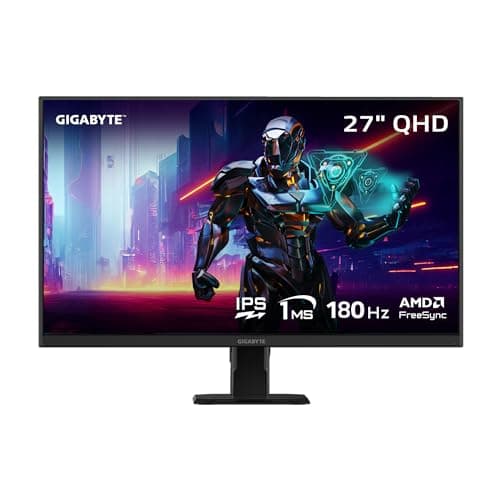
The 27GS75Qtakes the top spot because it is the most complete high-refresh package for the money: 1440p IPS, well past 144Hz, and a genuinely adjustable height-and-pivot stand that cheaper panels almost always drop. Its only real caveats are honest ones — the HDR badge is nominal, and the highest refresh figure is an overclock, so you are really buying a very good high-refresh panel rather than a headline number. The GIGABYTE GS27QA is the cheapest sensible way into 27-inch 1440p high-refresh, and it is excellent value; you give up the adjustable stand and you need a capable GPU to feed 1440p at speed, but the panel itself is a real upgrade.

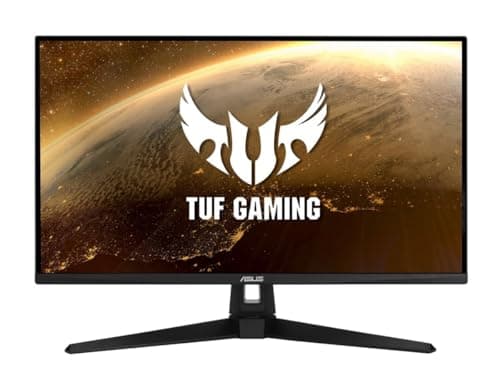
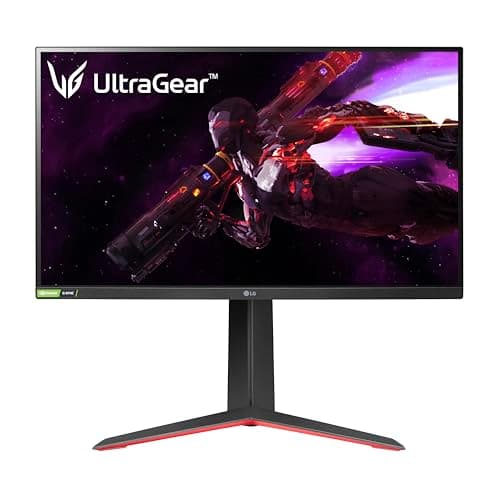
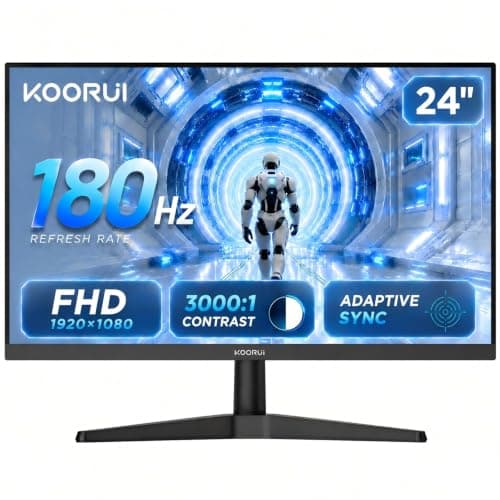
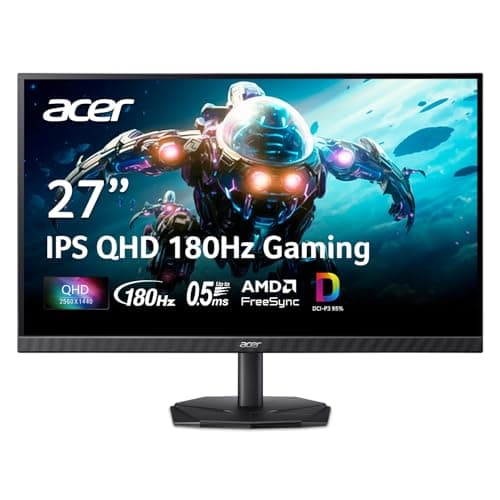
The Acer KG271Uis the other value route into 27-inch 1440p IPS, and often the cheapest of all — the saving comes out of the stand, so check its height range against your desk before you buy. The ASUS VG249Q1A is the high-fps 1080p option for competitive players: it is a 24-inch panel with ELMB motion strobing, so it is the pick if you care about the fastest, cleanest motion for shooters more than about sharpness, though it costs more than plainer 1080p panels. The 27GP850is the premium colour-and-motion pick: a Nano IPS panel that is G-SYNC Compatible and a favourite of people who want an accurate, fast screen with money left for the rest of the setup — its blacks still cannot match an OLED, which is the price of IPS. And the KOORUI is the budget entry point: a 24-inch 1080p VA panel that gets you into high-refresh gaming for the least money, with the VA dark-scene smear as the trade you accept for the low price and the deep contrast.

Turn on variable refresh, then match the panel to your PC

Whichever you choose, enable its FreeSync or G-SYNC Compatible mode — at high, uncapped frame rates it removes tearing without adding lag, and our G-SYNC vs FreeSync guide explains why the flavour barely matters. Then let your graphics card set the ceiling: buy the refresh rate you can feed, the panel type that suits your games, and the size your desk and GPU can handle. If you decide sharpness should lead instead, the best 1440p monitors and best 240Hz monitors are the two natural next pages, and if frames-first on a tighter budget is the goal, the best 1080p monitors cover it.
The short answer

Quick picks

#ProductBest forScorePrice
01
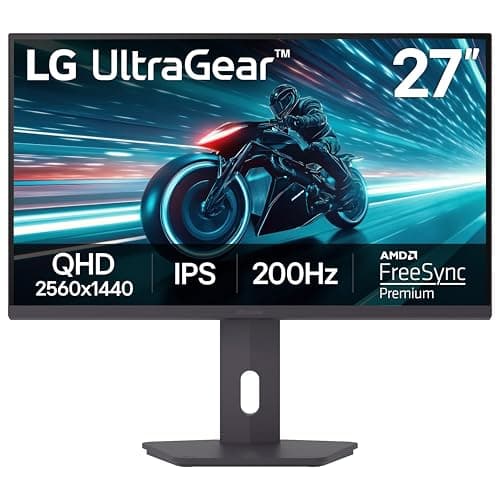
LG LG UltraGear 27GS75Q-B
LG UltraGear 27GS75Q-B

The one to buy. 1440p, IPS, 180Hz and a stand that actually adjusts — the complete package for the money.

The best all-round pick
8.6
$179.99Amazon
02
GIGABYTE GIGABYTE GS27QA
GIGABYTE GS27QA

27in and 1440p under $200. This is the one that makes the others look dated.

Sharpness — the biggest real upgrade here
7.8
$145.99Amazon
03
Acer Acer Nitro KG271U
Acer Nitro KG271U

The cheapest way into 27-inch 1440p IPS worth taking. You give up the stand, not the panel.

Spending the least
7.0
$149.99Amazon
04
ASUS ASUS TUF Gaming VG249Q1A
ASUS TUF Gaming VG249Q1A

A known-good panel at the top of the budget. Being outclassed by cheaper options.

If you want the ASUS name
7.4
$186.00Amazon
05
LG LG UltraGear 27GP850-B
LG UltraGear 27GP850-B

The sensible high-refresh IPS pick. Fast, colour-accurate, and it leaves money in the budget for the rest of your setup.

Best sensible high-refresh
8.2
$359.99Amazon
06
KOORUI KOORUI 24in Gaming Monitor
KOORUI 24in Gaming Monitor

The cheapest 180Hz panel worth owning, and the VA contrast is a genuine plus.

Spending the least
6.6
$89.99Amazon

#ad · Live prices from the Amazon Product API, as of Jul 31, 2026. Where we have no verified live price, we show none — we would rather leave a gap than print a number that has rotted.

In detail

The picks, in full

01
LG LG UltraGear 27GS75Q-B

The best all-round pick

LG UltraGear 27GS75Q-B

27"2560x1440 IPSLG rates 180Hz (OC 200Hz) / 1msHeight/pivot stand
8.6/10

The one to buy. 1440p, IPS, 180Hz and a stand that actually adjusts — the complete package for the money.

Panel quality
9
Build quality
8
Ergonomics
9
Features
8
Value
9

Pros

  • 1440p IPS at 180Hz is the configuration most people should own, and LG tunes its panels a clear step above the no-name competition
  • A tilt/height/pivot stand — the ergonomic adjustment budget monitors almost always delete to hit a price
  • Certified for both NVIDIA G-SYNC Compatible and AMD FreeSync, so variable refresh works whatever card you run

Cons

  • The HDR10 badge is nominal — no local dimming, so it is SDR with a wider input range, not real HDR
  • The 200Hz is an overclock; you are really buying a very good 180Hz panel

Don't buy this if…

your graphics card is entry-level. 1440p at 180Hz is a lot of pixels to feed, and an older or budget GPU will leave most of those frames on the table — a 1080p panel from our under-$200 guide is the smarter buy until you upgrade it.

$179.99View on Amazon

Price as of Jul 31, 2026. Prices change — Amazon's is the one that counts.

#ad · we may earn a commission from this link to LG UltraGear 27GS75Q-B

02
GIGABYTE GIGABYTE GS27QA

Sharpness — the biggest real upgrade here

GIGABYTE GS27QA

27"2560x1440 IPSGIGABYTE rates 180Hz / 1msQHD
7.8/10

27in and 1440p under $200. This is the one that makes the others look dated.

Panel quality
9
Build quality
7
Ergonomics
6
Features
8
Value
9

Pros

  • 1440p is the single most noticeable upgrade on this page — it is a far bigger visual jump than 20 extra Hz
  • 27in at 1440p has roughly the same pixel density as 24in at 1080p, so nothing gets small
  • 180Hz IPS as well, so you are not trading speed for sharpness

Cons

  • Needs meaningfully more GPU to drive 1440p at high frame rates — the monitor may be affordable, the graphics card is not
  • Basic stand

Don't buy this if…

your GPU is entry-level. Buying a 1440p monitor you have to render at 1080p to feed is the most common mistake in this category — get the AOC and spend the difference on the graphics card.

$145.99View on Amazon

$199.9927% off

Price as of Jul 31, 2026. Prices change — Amazon's is the one that counts.

#ad · we may earn a commission from this link to GIGABYTE GS27QA

03
Acer Acer Nitro KG271U

Spending the least

Acer Nitro KG271U

27"2560x1440 IPSAcer rates up to 180Hz / 0.5msDCI-P3 95%
7.0/10

The cheapest way into 27-inch 1440p IPS worth taking. You give up the stand, not the panel.

Panel quality
8
Build quality
6
Ergonomics
4
Features
7
Value
10

Pros

  • 27-inch 1440p IPS at the lowest price here — the sharpness jump over 1080p for less than many 1080p monitors cost
  • Acer quotes 95% DCI-P3 coverage, wide enough that colour looks genuinely good rather than merely acceptable
  • Two HDMI 2.0 plus a DisplayPort, so a console and a PC can stay plugged in at once

Cons

  • The stand is where Acer saved the money at this price — check its adjustment range against your desk height before buying
  • HDR10 support is nominal; there is no local dimming to make it mean anything

Don't buy this if…

you need to raise the screen much to reach eye level. Budget savings on a monitor this cheap usually come out of the stand, and adding a monitor arm erases the price advantage that makes this the value pick.

$149.99View on Amazon

$179.9917% off

Price as of Jul 31, 2026. Prices change — Amazon's is the one that counts.

#ad · we may earn a commission from this link to Acer Nitro KG271U

04
ASUS ASUS TUF Gaming VG249Q1A

If you want the ASUS name

ASUS TUF Gaming VG249Q1A

24"1080p IPSASUS rates 165HzELMB
7.4/10

A known-good panel at the top of the budget. Being outclassed by cheaper options.

Panel quality
8
Build quality
8
Ergonomics
7
Features
8
Value
6

Pros

  • ASUS's ELMB backlight strobing genuinely reduces motion blur, and few budget monitors have it
  • Reliable panel with a long track record

Cons

  • 165Hz where cheaper monitors here do 180Hz
  • The most expensive 1080p option on this page, and it is not the best one

Don't buy this if…

you're optimising for value. The AOC 24G4 is faster and cheaper, and the GIGABYTE gives you 1440p for less. This is here for completeness, not because we'd pick it.

$186.00View on Amazon

Price as of Jul 31, 2026. Prices change — Amazon's is the one that counts.

#ad · we may earn a commission from this link to ASUS TUF Gaming VG249Q1A

05
LG LG UltraGear 27GP850-B

Best sensible high-refresh

LG UltraGear 27GP850-B

27"2560x1440 Nano IPSLG rates 165Hz (180 OC) / 1msG-Sync compatible
8.2/10

The sensible high-refresh IPS pick. Fast, colour-accurate, and it leaves money in the budget for the rest of your setup.

Panel quality
8
Build quality
8
Ergonomics
8
Features
8
Value
9

Pros

  • Nano IPS colour and viewing angles with a genuinely fast response for an LCD
  • 165Hz (overclockable) with variable refresh, so competitive play stays smooth and tear-free
  • Costs well under the budget cap, freeing money for a mouse, headset or keyboard

Cons

  • IPS blacks are grey next to the OLED — in a dark room the difference is obvious
  • HDR is nominal; there's no meaningful local dimming
  • Nothing about it is exciting — it's the reliable choice, not the showpiece

Don't buy this if…

contrast and dark-room punch matter most to you. IPS can't match OLED blacks — if that's the priority, stretch to the 27GS93QE.

$359.99View on Amazon

Price as of Jul 31, 2026. Prices change — Amazon's is the one that counts.

#ad · we may earn a commission from this link to LG UltraGear 27GP850-B

06
KOORUI KOORUI 24in Gaming Monitor

Spending the least

KOORUI 24in Gaming Monitor

24"1080p VAKOORUI rates 180Hz / 1ms3000:1 contrast
6.6/10

The cheapest 180Hz panel worth owning, and the VA contrast is a genuine plus.

Panel quality
6
Build quality
6
Ergonomics
5
Features
7
Value
9

Pros

  • 3000:1 VA contrast makes dark scenes look far better than any IPS here
  • 180Hz at the lowest price on this page

Cons

  • VA smearing in dark, fast-moving scenes is real and you will see it in a shooter
  • Viewing angles and colour shift are worse than IPS
  • Basic tilt-only stand

Don't buy this if…

you play competitive shooters. VA's dark-transition smear is exactly the artefact that hurts you there — pay the small premium for the AOC's IPS panel.

$89.99View on Amazon

$159.9944% off

Price as of Jul 31, 2026. Prices change — Amazon's is the one that counts.

#ad · we may earn a commission from this link to KOORUI 24in Gaming Monitor

How we picked

We do not run a testing lab

We researched published specifications, third-party lab measurements, manufacturer documentation and aggregated owner reviews, then scored each product against a published rubric. The scores are judgements from documented research — they are notmeasurements we took, because we do not have a lab and we are not going to pretend we do. Where a number came from someone else's lab, we name them and link them in Sources.

Questions

Frequently asked

Is 144Hz a big upgrade over 60Hz?
Yes — it is the single most-felt upgrade in gaming. Moving from 60Hz to 144Hz makes motion clearer and the whole system feel more responsive, and the change is obvious the first time you see it, in slow games as well as fast ones. It is also easy enough to drive that a mid-range graphics card can feed it at sensible settings.
Do I need a strong graphics card for a 144Hz monitor?
A 144Hz panel only shows 144 distinct frames a second if your card produces 144 frames a second in that game, so the refresh rate is a ceiling rather than a promise. A capable mid-range card feeds 144Hz to 180Hz comfortably at 1080p, and at 1440p with sensible settings. Buy the refresh rate your hardware can actually supply rather than the highest number on the box.
Is 144Hz or 240Hz better for gaming?
144Hz is the comfortable sweet spot for most builds; 240Hz is worth it only if you play competitive shooters and own a graphics card strong enough to push those frames. Above 144Hz the gains are real but subtler, and if your PC cannot feed the higher number it simply sits idle. Response time matters as much as raw Hz for how clean motion looks.
Is 144Hz enough at 1440p?
For the large majority of gamers, yes. A 144Hz-to-180Hz panel at 1440p pairs a clear step over 60Hz with a resolution a mid-range card can still drive at high frame rates, which is why it is the configuration we point most people to. Step higher only if you play competitive shooters and have the graphics card to feed the extra frames.

Keep reading

Receipts

Sources

We do not run a testing lab, and we do not pretend to. Where a measured number came from someone else's lab, we name them and link them. Where we could not verify something, we say so on the page rather than quietly leaving it out. Read our full method.