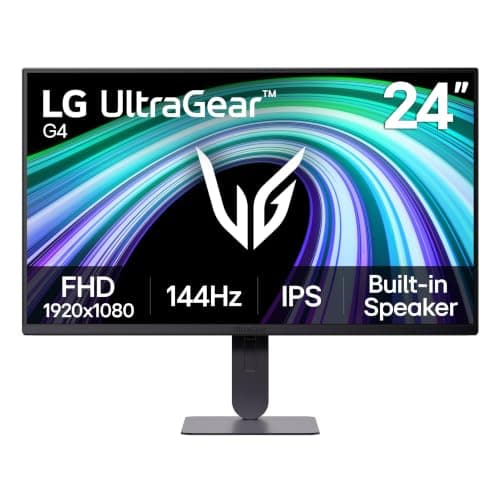
If you want one recommendation and no homework, buy the LG UltraGear 24-inch. It is 1080p, IPS, high-refresh, and — unusually at this price — it sits on a stand that actually adjusts for height and pivot, the one feature budget monitors cut first and you miss every day. 1080p (1920×1080, also called Full HD) is the high-frame-rate resolution: it is pixel-light, so even a modest graphics card can push the very high frame rates that competitive play and fast shooters live on, and every panel on this page runs well above 60Hz. Because they are all the same resolution, sharpness is not the thing that separates them — the panel technology and the stand are. Get those two decisions right and any monitor here is a good one.
Why 1080p is still the right resolution for a lot of gamers
The case for 1080p is a case about frames. Every jump up in resolution is more pixels your graphics card has to draw on every single frame, and 1080p asks for the fewest of them. That is precisely why it is the esports standard: when your priority is triple-digit frame rates rather than a razor-sharp desktop, a lighter pixel load is an advantage, not a compromise. A mid-range card that would struggle to feed a 1440p panel at high refresh can sit comfortably above 144fps at 1080p in the same game, and in a competitive shooter those extra frames translate into lower latency and clearer motion.
It is also the budget resolution, and honestly so. The panels here cost the least of any on the site, and the money you save is money you can put toward the graphics card that actually determines your frame rate. If you are still deciding which resolution suits the way you play, our what resolution should I game at guide and our 1080p vs 1440p comparisonlay out the trade-off in full — but the short version is that 1080p is the resolution that gives up the least when frames come first.
1080p only looks soft if you stretch it
The one honest caveat about 1080p is pixel density, and it is entirely about size. Spread 1080p across a 27-inch or larger screen and it starts to look a little grainy up close, because the same number of pixels is covering more surface. Keep it on a 24-inch panel — which is what every monitor on this page is — and it looks crisp; a 24-inch 1080p screen has a perfectly comfortable pixel density for sitting at a desk. This is why we do not recommend chasing 1080p on a big panel: if you want a bigger screen, the sensible move is to step up in resolution at the same time, not to stretch the pixels you have.
The practical rule, which we cover in our what size monitor for gamingguide, is that 24 inches and 1080p belong together. If a 27-inch screen is what you are really after, the sharp answer is 1440p rather than stretched Full HD — our best 144Hz monitors and best 1440p monitors pages are where that upgrade lives.
The panel decision: IPS versus VA
At a fixed resolution, panel technology is what you are really choosing between, and the split here is IPS versus VA.
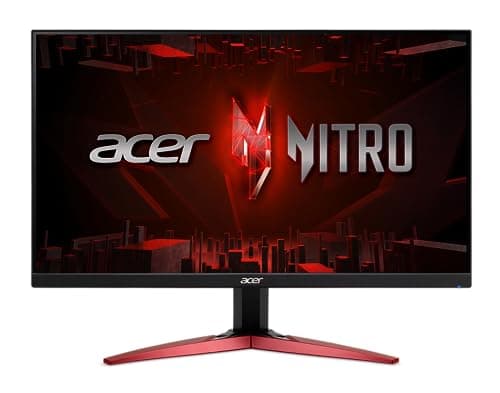
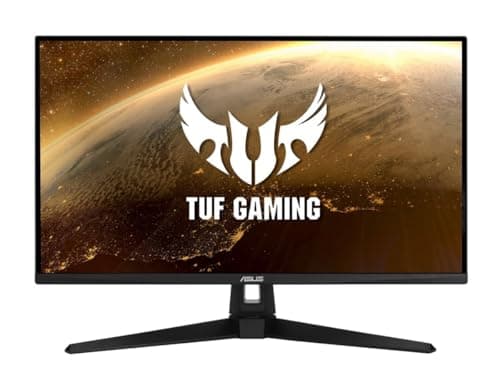
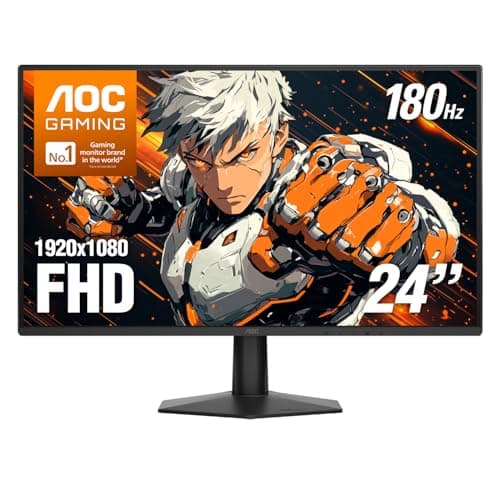
- IPS (the LG UltraGear, the Acer Nitro KG241Y, the ASUS VG249Q1A and the AOC 24G51F2) gives you accurate color, wide viewing angles and fast, clean motion. Its weakness is black level: in a dark room the blacks glow slightly gray, because the backlight behind them never fully switches off. For most people in most rooms, IPS is the safe, no-regrets default, and it is the right panel for competitive shooters where clean motion matters more than deep contrast.
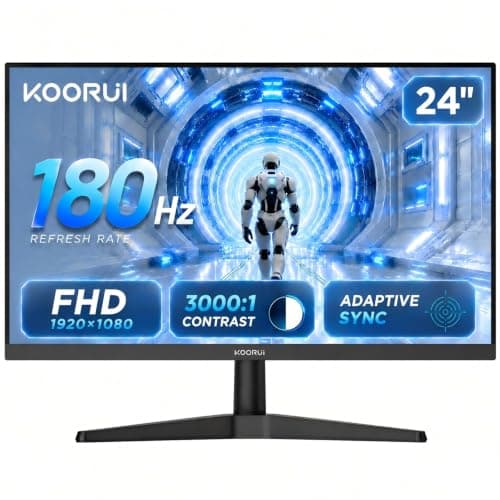
- VA(the KOORUI) trades some of that motion clarity for much deeper contrast — blacks look genuinely black, which makes dark, cinematic scenes look far richer than any IPS on this page can manage. The cost is slower dark-scene pixel transitions, which can show up as a faint smear behind fast-moving objects. Our IPS vs VA guide covers exactly why that contrast comes at the price of motion.
If you want to know how panel type shows up in real motion rather than on a spec sheet, the honest reference is measured data: independent reviewers like RTINGS and Blur Busters publish response-time and overshoot numbers we do not take ourselves, because we do not run a lab. Our response-time explainer unpacks what those figures actually mean for the game in front of you.
The stand is the spec nobody photographs
Ergonomics are the quiet differentiator on a budget monitor, and they are the first thing manufacturers delete to hit a price. A tilt-only stand holds the screen at whatever height the box decides, and if that is below your eye line you will spend every session looking down at it — a genuine comfort problem over a long evening, and one a cheap monitor arm only fixes by erasing the price advantage that made the monitor cheap in the first place.
This is the single reason the LG UltraGear takes the top spot over faster, cheaper panels: it ships with real height and pivot adjustment where most rivals here give you tilt and nothing else. It is not a glamorous spec, but it is one you interact with every day, and it is worth a small premium if your desk or chair is not already at a perfect height.
Turn on Adaptive Sync, whichever one you buy
Whichever monitor you pick, switch on its variable refresh rate — FreeSync or G-SYNC Compatible. It removes screen tearing without the input-lag penalty of old V-Sync, and it matters most at 1080p precisely because your frame rate swings around so much when it is high and uncapped. Which flavor you get matters far less than people think, and both work across AMD and NVIDIA cards now; our G-SYNC vs FreeSync guide covers the detail. If you are coming from a 60Hz screen, our 60Hz vs 144Hz guide explains why the jump you are about to make is the most-felt upgrade in gaming.
The specs you can safely ignore at this price
Budget monitors are sold on a long list of features, and a few of them mean far less than the box implies. The HDR badge is the clearest example: an entry-level HDR sticker on a panel with no local dimming means the screen accepts an HDR signal, not that it displays real HDR — so treat every monitor on this page as an SDR screen and you will not be disappointed. Our is HDR worth it guide is blunt about which HDR claims are worth paying for, and none of them live in this price bracket.
The response-time figure is the other number to read skeptically. A headline like “1ms” is usually a best-case marketing measurement taken with aggressive overdrive that can introduce its own smearing, not the gray-to-gray figure that describes real motion — which is exactly why we lean on the measured data from independent labs rather than the spec sheet, and why our response-time explainer exists. Built-in speakers, where a panel here has them at all, are an afterthought you will replace with a headset, and RGB lighting on the back is decoration rather than performance. Spend your attention on the panel type, the refresh rate and the stand, and let the rest of the feature list wash over you.
Connectivity is the last thing worth a glance rather than a study. Any of these panels has the inputs a single PC needs, and on a 1080p monitor you are nowhere near the bandwidth limits that make cable versions matter, so a DisplayPort or HDMI connection from a modern graphics card carries the full refresh rate without drama — just make sure you are plugged into the higher-bandwidth input if the panel offers a choice, since that is a common reason a new monitor appears stuck at 60Hz. If a console is going to share the desk that changes the calculus, but that is a different page, and our best monitors for PS5 guide handles the HDMI question a console raises.
How the picks rank
The LG UltraGear 24-inchwins because it is the most complete package: a well-tuned 1080p IPS panel with the height-and-pivot stand the rest of the field drops. The trade is that it costs a little more than the cheapest options and, being 1080p, it offers no sharpness advantage — you are paying for build and ergonomics, not pixels. The AOC 24G51F2 is the frames-per-dollar pick and a clean budget Fast IPS: it undercuts the LG by a wide margin and is the faster panel of the two. What it gives up is exactly the stand — tilt-only, with no height adjustment — alongside the ordinary caveat that IPS blacks look gray in a dark room.
The Acer Nitro KG241Yis usually the cheapest IPS on the shelf, which is its whole appeal — but it saves that money on the stand, which is tilt-only and sits low, so it is the wrong pick if you are tall or your desk is low. The ASUS VG249Q1A earns its place on the back of ELMB backlight strobing, which genuinely sharpens motion and is rare at this price; the honest catch is that it is the most expensive 1080p panel here and runs a touch slower on paper than the cheaper AOC, so it is a pick for someone who wants the ASUS name and the strobing specifically. And the KOORUI is the cheapest panel on the page and the only VA one: its contrast makes dark-room games look markedly better than any IPS here, at the cost of dark-scene smear that you will notice in a fast shooter. Buy it for atmosphere, not for competitive twitch play.
Match the monitor to your graphics card, not your wish list
The one mistake to avoid at 1080p is buying the wrong panel for the games you actually play. If you live in competitive shooters, prioritize the IPS panels and their clean motion over the KOORUI's contrast. If you mostly play atmospheric single-player games in a dark room, the VA panel is the better tool and the cheapest one here. Either way, be honest about the frame rates your card hits in the games you play, turn on Adaptive Sync, and spend the difference on panel quality or the stand rather than on a resolution that would only tax your GPU harder. If your budget is set by a number, our price-first pages line up the same class of panel by cost: the best under $150 and best under $200. And when you are ready for a sharper, bigger picture, the best 144Hz monitors are the natural next rung up. If competitive shooters are specifically why you are shopping at 24 inches, our best gaming monitors for FPS page ranks the same class of panel against the three specs that decide a gunfight, and what GPU you need for 1440p 144Hz is the page to read before you talk yourself into a higher resolution.