Start by deciding which of four symptoms you actually have: the wheel does nothing, it scrolls erratically in both directions, it skips or needs several clicks to move a line, or it scrolls the wrong way. The first and last are almost always software. The middle two are almost always dust or wear inside the encoder, and compressed air plus a drop of isopropyl alcohol fixes the majority of them. Work in that order and you will usually find the cause in under ten minutes.
What the wheel actually is
A scroll wheel is a wheel on a shaft turning a rotary encoder. In nearly every mouse under a few hundred dollars that encoder is mechanical: a small plastic drum with metal contacts that brush against each other as it turns, producing the step signals your PC reads as scroll notches. The detents you feel — the little clicks — come from a sprung arm riding a toothed ring.
That construction explains every failure mode. Contacts that are dusty, oxidised or worn make intermittent connections, and an intermittent connection in a quadrature encoder produces exactly the classic symptom: the page jumps up when you scroll down. It is not random. It is the encoder reporting a direction change it never made.
Step 1: rule out software, because it is free
Try the mouse in a different application. If the wheel works in your browser and not in one program, the problem belongs to that program's settings, not to the mouse.
Try a different USB port, and a different PC if you can. This separates a failing cable or receiver from a failing wheel in two minutes.
Check the scroll settings.On Windows, mouse settings include lines-per-notch and an inverted-direction option; a wheel that scrolls the “wrong way” after an update is this setting, not a fault. Microsoft’s own documentation covers where they live. Gaming mice add a second layer: in Logitech G HUB or an equivalent, the wheel can be bound to something other than scrolling in a per-game profile, which is a surprisingly common cause of a wheel that works on the desktop and not in one game.
Reinstall or roll back the driver. Uninstall the mouse under Device Manager and reboot; Windows reinstalls it. If the wheel broke the day the vendor software updated, rolling that back is the fix.
On a wireless mouse, change the battery. A wheel that works for a second and then stutters is a classic low-voltage symptom, and so is the behavior in our wireless mouse disconnection guide.
Step 2: clean the encoder
If the wheel is erratic in both directions, or it needs two or three notches to move one line, it is dirty. This is the fix that works most often.
Unplug the mouse first. Then hold it so the wheel points down, and blow compressed air into the slot around the wheel from both sides while turning the wheel slowly. Short bursts, and keep the can upright so it does not spit liquid propellant.
Then use alcohol. Put a drop or two of 90%-plus isopropyl alcohol on a cotton swab, press it against the wheel slot where the encoder sits, and spin the wheel for twenty or thirty seconds so the solvent carries the grime off the contacts. Let it dry completely — a minute or two — before plugging the mouse back in. Do not use water, do not use a household cleaner, and do not use oil or lubricant, which attracts dust and makes the problem permanent.
Most mice improve immediately. If the symptom returns within days, the contacts are worn rather than dirty, and cleaning is buying you time rather than fixing it.
Step 3: open it, if you are willing
Opening a mouse voids the warranty, so check the warranty first — a mouse under warranty with a dead wheel is a replacement, not a repair project.
If it is out of warranty and you want to try: the screws are usually hidden under the mouse feet, which have to be peeled off and will need replacing afterwards. Inside, the encoder is a small sealed drum with a metal cover you can gently prise, clean inside with alcohol, and reseat. Some people also squeeze the metal tabs slightly to restore contact pressure. It is a genuine fix and a genuinely fiddly one, and if you are spending an hour on a $25 mouse, the arithmetic is not in your favor.
When it is actually finished
Three signs mean the wheel is done: the symptom comes back within a week of each clean, the detents feel gritty or uneven when you turn the wheel by hand with the mouse unplugged, or the middle click has also stopped working reliably. That last one matters because the middle-click switch sits directly under the wheel assembly, and a failure of both usually means the whole module is worn.
A worn wheel often arrives alongside the other classic mechanical-wear fault, which is the double-click problem our mouse double-clicking guide covers. If a mouse has both, it has done its time.
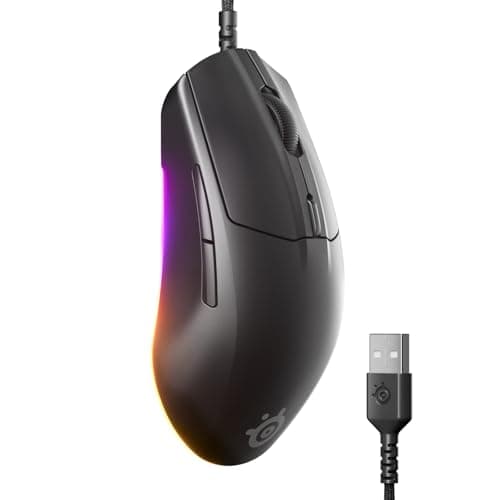
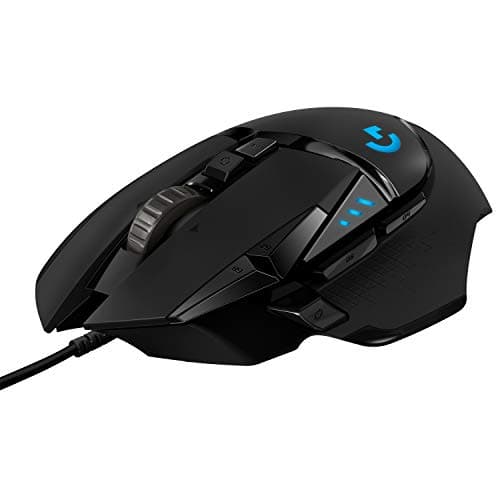
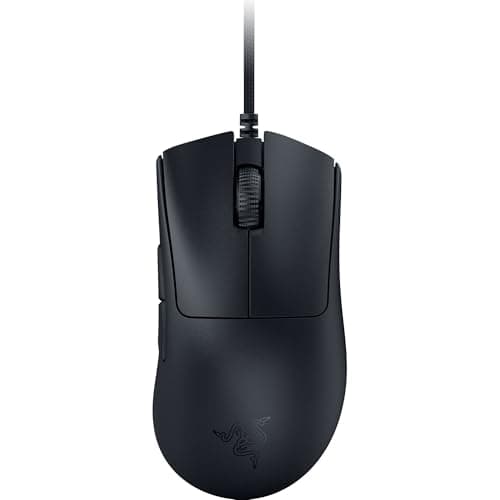
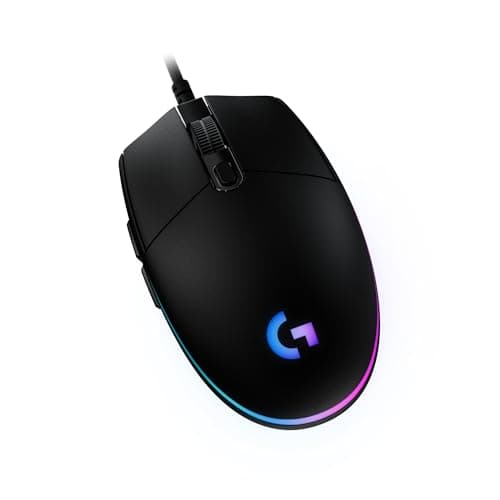
The four picks below are the sensible replacements at each level: a cheap and reliable wired mouse, two mid-priced mice that are easy to live with, and one with a free-spin wheel if scrolling is a big part of what you do. For the full rankings see best wired gaming mice and best gaming mice under $50, and before you buy, our how to choose a gaming mouse guide covers which specifications are worth paying for. Independent teardowns and lab testing at RTINGS are a good source on build quality if you want to compare longevity rather than features.