Skip to content
GEAREDGAMING

HUB 03 · Best Value

HDMI vs DisplayPort for Gaming

Nearly every 'my monitor is stuck at 60Hz' problem is a cable in the wrong port or a version number nobody checked. Here is the rule, and the three exceptions to it.

By Stephen V.Updated How we research
#ad

We earn a commission when you buy through our Amazon links, at no extra cost to you. It never affects our rankings, and we say so when the cheaper product is the better buy. How this works.

On a PC, use DisplayPort. On a PS5 or Xbox Series X you have no choice — the console only has HDMI, and you want the monitor to have HDMI 2.1 rather than 2.0. That one sentence resolves almost every version of this question. The rest of this guide is about the version numbers, because “it has HDMI” and “it has DisplayPort” tell you much less than people assume.

Here is the failure this guide exists to prevent. You buy a monitor rated at 240Hz, plug it in with the cable in the box, and Windows offers you 60Hz. Nothing is broken. You are either in an HDMI 2.0 port on a panel whose 240Hz only runs over DisplayPort, or you are using a cable that cannot carry the bandwidth, or the refresh rate is simply still set to its default. All three are common, and all three look identical from the desk.

What actually differs between the two

Both carry video and audio down one cable. The differences that matter for gaming are narrow:

  • DisplayPort is the PC standard. It is published by VESA, and it is the connector monitor makers wire their highest refresh rate to. If a panel can only do its headline Hz on one input, that input is almost always DisplayPort.
  • HDMI is the television standard, published by the HDMI Licensing Administrator. Consoles, streaming boxes and TVs use it exclusively. It also carries CEC and eARC, which are television features you will not miss on a monitor.
  • DisplayPort can daisy-chain multiple monitors from one port via MST, and HDMI cannot. Useful if you run three screens off a laptop; irrelevant otherwise.
  • USB-C with DisplayPort Alt Mode is DisplayPort in a different plug. A single cable carrying video, data and power to a laptop is DisplayPort doing the video part.

What does not differ: image quality. Neither connector is sharper or more colorful than the other at the same resolution, refresh rate and color depth. Both are digital, and a correct signal is a correct signal. Anyone selling you a premium cable for better color is selling you nothing.

The version table is the whole answer

Bandwidth is what decides whether a given resolution and refresh rate fit down the cable, and bandwidth is set by the version. The published figures from the DisplayPort and HDMI specifications, in the terms that matter at a desk:

  • HDMI 2.0 — about 18 Gbps.4K at 60Hz, or 1440p at around 144Hz. This is the port that caps a console at 60Hz and the reason “it has HDMI” is not reassuring.
  • HDMI 2.1 — up to 48 Gbps. 4K at 120Hz, and 1440p at very high refresh rates. This is the version a current console needs to show you what it can do.
  • DisplayPort 1.4 — about 32 Gbps. 1440p at 240Hz, or 4K at 120Hz with compression. The most common port on gaming monitors today.
  • DisplayPort 2.1 — up to 80 Gbps. Headroom for 4K at very high refresh and beyond. Still uncommon on both monitors and graphics cards.

So the comparison that matters is never “HDMI vs DisplayPort.” It is HDMI 2.0 versus HDMI 2.1, or DisplayPort 1.4 versus 2.1. A monitor listing that says only “HDMI” without a version is a listing to be suspicious of.

DSC: why a 4K 240Hz panel works at all

4K at 240Hz with 10-bit color needs far more raw bandwidth than DisplayPort 1.4 provides, and yet those monitors exist and work. The mechanism is Display Stream Compression, a VESA standard that compresses the signal at a ratio low enough that VESA describes it as visually lossless.

In practice DSC is a non-event: you will not see it, and it does not add input lag you can perceive. The one thing worth knowing is that both the graphics card and the monitor have to support it, which modern cards from NVIDIA and AMD do. If you are running an older card into a new high-refresh panel, that is one of the places the refresh rate quietly drops.

Adaptive sync: it works on both now

This used to be a real differentiator. G-SYNC was DisplayPort-only, FreeSync was better supported over HDMI, and the advice depended on your card. That era is over: HDMI 2.1 includes variable refresh rate, and both vendors support adaptive sync across both connectors on current hardware. Our G-SYNC vs FreeSync guide covers which badge means what; the connector is no longer part of that decision.

Consoles: HDMI, and check the version on the monitor

A PS5 and an Xbox Series X have HDMI out and nothing else, so the only question is what the monitor offers. PlayStation and Xbox Support both document their supported output modes, and the practical summary is: into HDMI 2.1 you get 4K120 and VRR; into HDMI 2.0 you are capped around 4K60. There is one console-specific wrinkle worth knowing — the PS5 does not output 1440p at high refresh on every monitor, where an Xbox Series X handles 1440p natively, which is why our PS5 monitor page exists as its own page rather than a footnote.

The practical checklist

If your refresh rate is wrong, work through this in order. It solves it almost every time.

  • Use DisplayPort on a PC unless you have a specific reason not to. If the monitor has both, this is the port its headline Hz is wired to.
  • Use the cable in the box first,then suspect it. A cable that works at 1080p60 can fail at 1440p240 — and failure looks like a lower available refresh rate, not a dead screen.
  • Set the refresh rate manually. Windows frequently defaults to 60Hz even when 165 is available. Our how to check your refresh rate guide has the exact steps.
  • Check the monitor's own menu. Some panels ship with DisplayPort set to an older version, or with the high-refresh mode disabled per-input, and will not offer the full rate until you change it.
  • If the screen says no signal at all, that is a different fault — our monitor no signal guide is the right page.

Which monitors to buy with this in mind

Having read the above, the port list on a listing stops being noise and becomes a filter. These four cover the common cases: the cheapest 1440p 240Hz panel if you are on a PC with DisplayPort and nothing else matters; the do-it-all 1440p panel with HDMI 2.1 if a console shares the desk; the 24-inch competitive standard where HDMI 2.0 carries the full refresh rate anyway; and a 32-inch 4K screen if you want the resolution. The wider fields are on best monitors for FPS, best 32-inch monitors and best 1440p monitors.
The short answer

Quick picks

#ProductBest forScorePrice
01
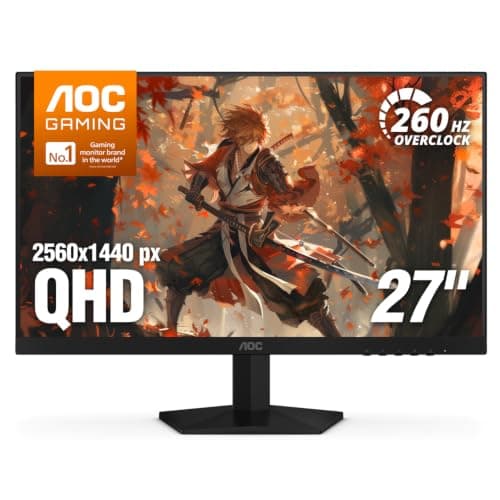
AOC AOC Q27G41ZE
AOC Q27G41ZE

240Hz and 1440p together for under $200 — the most frames per dollar on the page, if your GPU can feed them.

Competitive play / most Hz
7.4
$159.99 on Amazon →
02
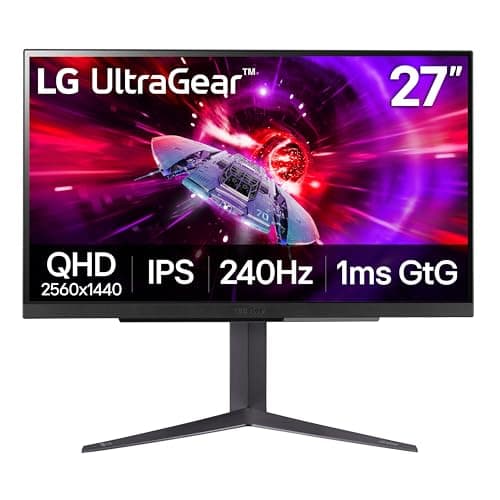
LG LG UltraGear 27GR83Q-B
LG UltraGear 27GR83Q-B

The do-it-all pick. 240Hz IPS for the PC, HDMI 2.1 for a current console, and a stand that does everything.

PS5 / Xbox + PC
8.4
$259.99 on Amazon →
03
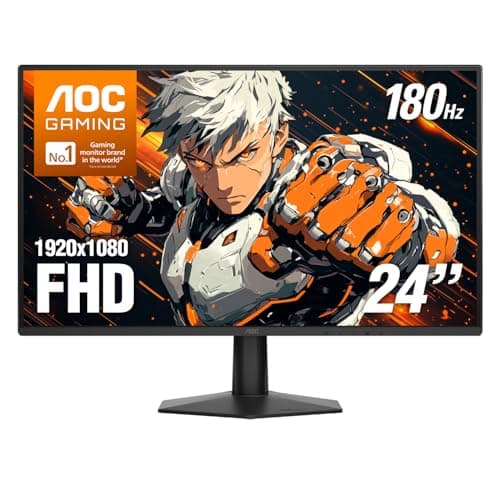
AOC AOC 24G51F2
AOC 24G51F2

The one to buy. 24in, 1080p, Fast IPS, 180Hz — the competitive-gaming standard, cheap.

The best all-round pick
8.0
$105.15 on Amazon →
04
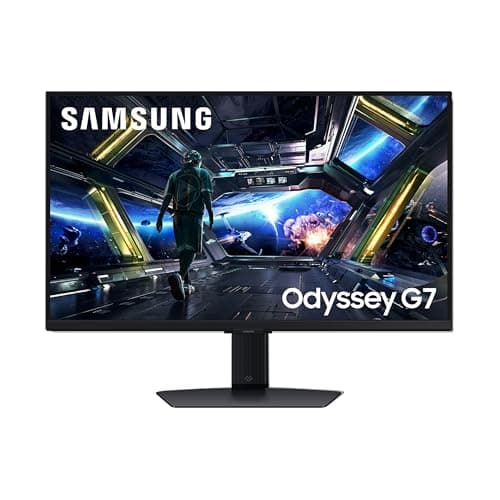
Samsung Samsung Odyssey G7 (G70D) 32-inch 4K
Samsung Odyssey G7 (G70D) 32-inch 4K

A big-brand 32-inch 4K IPS with the features and support the bargain panels skip. The safe premium pick short of OLED.

Best big-brand 4K
8.0
Check Price on Amazon →

No buyable offer at last check

#ad · Live prices from the Amazon Creators API, as of October 21, 2026. Where we have no verified live price, we show none — we would rather leave a gap than print a number that has rotted.

In detail

The picks, in full

01
AOC AOC Q27G41ZE

Competitive play / most Hz

AOC Q27G41ZE

27"2560x1440 IPSAOC rates 240Hz (OC 260Hz) / 0.3msAdaptive Sync
7.4/10

240Hz and 1440p together for under $200 — the most frames per dollar on the page, if your GPU can feed them.

Panel quality
8
Build quality
7
Ergonomics
5
Features
8
Value
9

Pros

  • 240Hz on an IPS 1440p panel at this price would have cost flagship money two years ago
  • G-SYNC Compatible with a 0.3ms rated response, aimed squarely at fast shooters
  • AOC's 3-year zero-bright-dot panel warranty is unusually generous for the money

Cons

  • 'HDR Ready' means it accepts an HDR signal, not that it displays real HDR — treat it as an SDR monitor
  • Only HDMI 2.0, so 240Hz is DisplayPort-only and a PS5 / Series X is capped at 60Hz on this screen
  • 240Hz at 1440p is a heavy GPU ask — you need frames in the 200s to use it, and most cards will not hit that in modern titles

Don't buy this if…

…you play story-driven or graphically heavy games. The 240Hz is dead weight unless you are pushing competitive shooters at very high frame rates — you would get a better stand and the same sharpness from a 180Hz panel instead.

$159.99View on Amazon

Price as of October 21, 2026. Prices change — Amazon's is the one that counts.

#ad · we may earn a commission from this link to AOC Q27G41ZE

02
LG LG UltraGear 27GR83Q-B

PS5 / Xbox + PC

LG UltraGear 27GR83Q-B

27"2560x1440 IPSLG rates 240Hz / 1msHDMI 2.1 · DisplayHDR 400
8.4/10

The do-it-all pick. 240Hz IPS for the PC, HDMI 2.1 for a current console, and a stand that does everything.

Panel quality
9
Build quality
8
Ergonomics
9
Features
9
Value
7

Pros

  • HDMI 2.1 is the real differentiator — a PS5 or Xbox Series X can run 1440p at 120Hz here, which none of the HDMI 2.0 monitors on this page can deliver
  • 240Hz IPS covers the competitive-PC side with no compromise
  • Full tilt/height/pivot stand and LG's better factory calibration

Cons

  • DisplayHDR 400 is entry-level HDR — better than a bare HDR10 sticker, but nowhere near the mini-LED AOC's real HDR
  • The most expensive monitor here, and part of that money buys HDMI 2.1 that a PC-only player on DisplayPort will never use

Don't buy this if…

…you only ever game on a PC. The HDMI 2.1 headline is wasted over DisplayPort, and the AOC Q27G41ZE gives you the same 240Hz and sharpness for over a hundred dollars less.

$259.99View on Amazon

$499.9948% off

Price as of October 21, 2026. Prices change — Amazon's is the one that counts.

#ad · we may earn a commission from this link to LG UltraGear 27GR83Q-B

03
AOC AOC 24G51F2

The best all-round pick

AOC 24G51F2

24"1920x1080 Fast IPSAOC rates 180Hz / 0.5ms MPRTAdaptive Sync
8.0/10

The one to buy. 24in, 1080p, Fast IPS, 180Hz — the competitive-gaming standard, cheap.

Panel quality
8
Build quality
8
Ergonomics
6
Features
8
Value
10

Pros

  • Fast IPS at 180Hz for close to VA money — you get the color and the viewing angles without paying the usual premium
  • 24in/1080p is the size and resolution competitive players actually use, and it is not a compromise
  • DisplayPort 1.4 and HDMI 2.0 both carry the full 180Hz, and AOC backs the panel with a three-year zero-bright-dot warranty

Cons

  • 1080p on a 24in panel is not sharp by modern standards — you will see pixels
  • IPS contrast is mediocre; blacks are gray in a dark room
  • The slim stand tilts only — no height adjustment, no swivel, no pivot, so raising it means a VESA arm

Don't buy this if…

…you mostly play story games in the dark. IPS blacks will disappoint you — the KOORUI's VA panel is the better tool for that, and it costs about the same.

$105.15View on Amazon

Price as of October 21, 2026. Prices change — Amazon's is the one that counts.

#ad · we may earn a commission from this link to AOC 24G51F2

04
Samsung Samsung Odyssey G7 (G70D) 32-inch 4K

Best big-brand 4K

Samsung Odyssey G7 (G70D) 32-inch 4K

32" 4K UHD3840x2160 IPSSamsung rates 144Hz / 1msHDR + smart TV apps
8.0/10

A big-brand 32-inch 4K IPS with the features and support the bargain panels skip. The safe premium pick short of OLED.

Panel quality
9
Build quality
8
Ergonomics
7
Features
9
Value
7

Pros

  • 32-inch 4K is genuinely immersive for single-player, sim and cinematic games
  • Samsung's warranty, panel consistency and smart features that off-brands lack
  • Fast IPS with variable refresh keeps the huge canvas smooth

Cons

  • IPS blacks still can't match the OLED sitting one tier above it
  • A serious GPU is required to feed 4K at high frame rates on a 32-inch panel
  • Smart-TV software is a nice-to-have some buyers will never touch

Don't buy this if…

…contrast and perfect blacks matter most, or your GPU is modest. The OLED G8 wins on contrast; a 1440p panel is easier to drive.

Check price on Amazon →

No buyable offer at the last price check (October 21, 2026). We show nothing rather than a stale number.

#ad · we may earn a commission from this link to Samsung Odyssey G7 (G70D) 32-inch 4K

How we picked

We do not run a testing lab

We researched published specifications, third-party lab measurements, manufacturer documentation and aggregated owner reviews, then scored each product against a published rubric. The scores are judgments from documented research — they are not measurements we took, because we do not have a lab and we are not going to pretend we do. Where a number came from someone else's lab, we name them and link them in Sources.

Questions

Frequently asked

Is HDMI or DisplayPort better for gaming?
DisplayPort on a PC, because it is the port monitor makers wire their highest refresh rate to. HDMI on a console, because that is the only output a PS5 or Xbox Series X has. Neither connector produces a better image at the same resolution and refresh rate — both are digital.
Why is my 144Hz monitor stuck at 60Hz?
Three usual causes, in order of likelihood: the refresh rate is still on its Windows default and needs setting manually; you are plugged into an HDMI 2.0 port on a panel whose high refresh rate only runs over DisplayPort; or the cable cannot carry the bandwidth. Check the display settings first, then the port, then the cable.
Do I need HDMI 2.1 for a gaming monitor?
Only if a PS5 or Xbox Series X is going to use it. HDMI 2.1 is what gets a current console to 4K120 with variable refresh; HDMI 2.0 caps it around 4K60. On a PC you would use DisplayPort instead and the HDMI version does not matter.
Does an expensive HDMI or DisplayPort cable improve picture quality?
No. Both are digital: the signal either arrives intact or it fails, and failure looks like a lower available refresh rate, flicker or dropouts rather than a slightly worse picture. Buy a cable certified for the bandwidth you need and spend nothing more.
Does DisplayPort support G-SYNC and FreeSync better than HDMI?
It used to. HDMI 2.1 includes variable refresh rate, and current cards from both NVIDIA and AMD support adaptive sync over both connectors, so the connector is no longer part of that decision.

Keep reading

Receipts

Sources

We do not run a testing lab, and we do not pretend to. Where a measured number came from someone else's lab, we name them and link them. Where we could not verify something, we say so on the page rather than quietly leaving it out. Read our full method.