Yes. The Steam Deck is an x86 PC, Windows installs on it, and Valve publishes official Steam Deck Windows drivers for the APU, Wi-Fi, Bluetooth, audio and the SD card reader. What you lose is the part that makes the Deck a console: the Steam Deck interface, instant suspend and resume, the per-game power controls and a meaningful amount of battery life. For most people the honest answer is that you do not need it — and the exceptions are specific. This guide covers who the exceptions are, the three ways to install it, what hardware the process actually requires, and how to get SteamOS back when you change your mind.
The only good reasons to do this
A game with anti-cheat that refuses to run on Linux. This is the main one. Proton, the compatibility layer SteamOS uses, handles the large majority of the Steam library, but a handful of competitive multiplayer titles ship kernel-level anti-cheat that the publisher has not enabled for Linux. If the game you play most is one of those, Windows is the only route. Our can the Steam Deck play AAA games guide covers how to check compatibility before you commit.
A storefront or launcher that has no Linux path you are willing to maintain. Most non-Steam launchers can be made to work on SteamOS with community tooling, and some people would rather not.
Windows-only software that is not a game. Specific creative, engineering or work applications with no Linux build.
If none of those describe you, stop here. SteamOS is the better handheld operating system for playing games on a Steam Deck, by a wide margin, and that is not a close call. Our is the Steam Deck worth it page makes the broader case.
What you give up
Suspend and resume. On SteamOS you press the power button mid-game and pick it up days later exactly where you left off. On Windows, sleep behavior on this hardware is unreliable, and losing it changes how the device feels more than any benchmark figure does.
The Steam Deck UI and the controller layer.Windows gives you a desktop on a 7-inch touchscreen. Steam’s Big Picture mode covers some of it, and the trackpads and gyro controls that SteamOS maps automatically need manual configuration.
Battery life and the power controls. SteamOS exposes a per-game frame-rate cap and a TDP slider in the quick-access menu, which is how people get four hours out of an indie game. Windows has no equivalent built in — third-party tools exist and are an extra thing to maintain. Our battery life guide explains what those controls do and why losing them costs real runtime.
Updates on a handheld. Windows updates and driver updates on a device with no keyboard are a chore, and you will do them in docked mode.
The three installation routes
1. Replace SteamOS on the internal drive
The simplest and the most destructive: you install Windows over the internal SSD and the Deck becomes a Windows handheld. It is the right choice only if you are certain, because getting SteamOS back means a full recovery-image reinstall.
2. Dual-boot
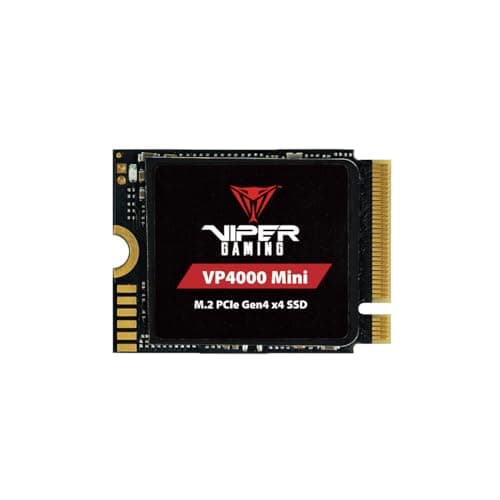
Both systems on the internal drive, chosen at boot. Multi-booting requires partitioning the drive manually, and it is the fiddliest of the three routes: a SteamOS update can affect the bootloader, and you are splitting an already-small drive in two. If you plan to dual-boot on a 256GB or 512GB Deck, a larger internal SSD is effectively a prerequisite — the Deck uses the short M.2 2230 form factor, not the 2280 drives desktops use, and our SSD installation guide covers the swap.
3. Windows on a microSD card or external SSD
The reversible route: SteamOS stays untouched on the internal drive and Windows lives on removable storage you boot from when you need it. This is the one to try first, and the trade-off is speed — a UHS-I microSD card is far slower than the internal NVMe drive, so Windows itself will feel sluggish even when games are playable. An external USB-C SSD is the better-performing version of the same idea. Our SD card vs SSD guide has the speed comparison, and storage explained covers what fits where.
What you physically need
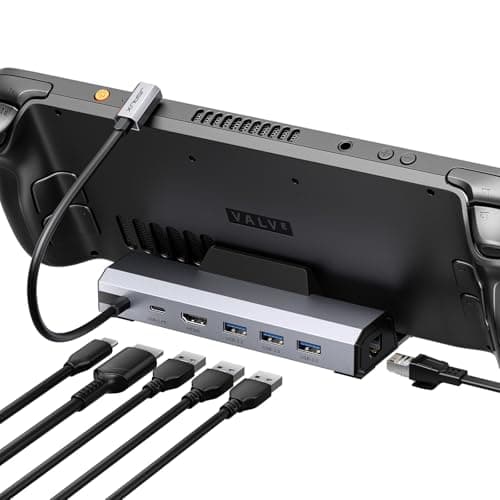
A USB-C hub or dock.Windows setup expects a keyboard and mouse, and the Deck’s on-screen keyboard does not exist inside the Windows installer. You need a hub with USB-A ports for a keyboard and the installation media, and preferably HDMI so you can see what you are doing on a real screen. This is not optional, and it is the step people discover halfway through. Our best Steam Deck docks page ranks the options.
A USB drive with Windows installation media, created with Microsoft’s official media creation tool on another PC, plus a valid Windows license. The license part is not optional either.
Valve’s Steam Deck Windows drivers, downloaded in advance from Steam Support and copied to the same USB drive. Install them straight after Windows: before you do, the Wi-Fi will not work, which means you cannot download the drivers from the Deck itself. Plan for that order.
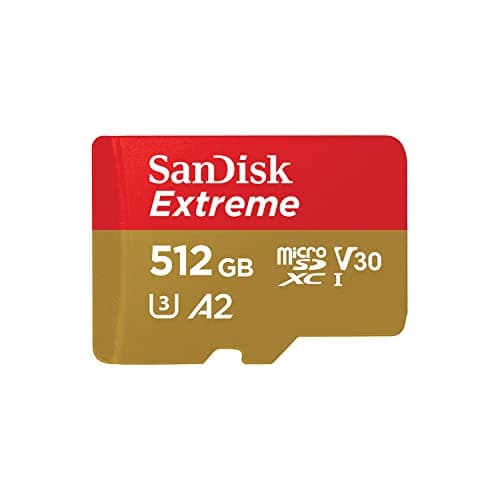
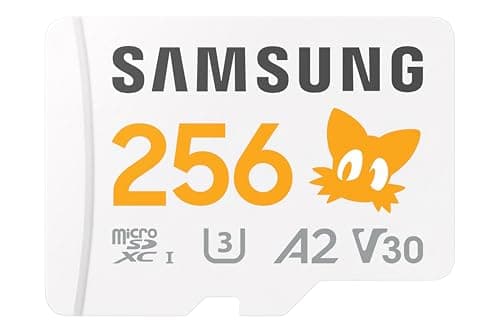
Storage for the games, because a Windows installation plus one modern title will fill a 256GB Deck. A fast microSD card is the cheap route and the cards below are the ones worth buying; the SD Association markings to look for are U3, V30 and A2, and our best SD cards for Steam Deck page explains which of those actually matter.
The install, in order
Back up your SteamOS saves first — cloud saves cover most of it, but not everything. Then: dock the Deck with a keyboard, mouse and both USB drives attached; hold the volume-down button while powering on to reach the boot menu; select the Windows installer; and follow it through. Partition carefully if you are dual-booting, because this is the step where people delete the SteamOS partition by accident.
When Windows reaches the desktop, install Valve’s driver package before anything else, then run Windows Update, then install Steam. Expect the screen to be in portrait orientation until the graphics driver is in place — the Deck’s panel is physically mounted rotated, and that is normal rather than a fault.
How to get SteamOS back
Valve publishes a SteamOS recovery image and the instructions for writing it to a USB drive on Steam Support. You boot from it and reimage the internal drive, which wipes Windows and returns the Deck to factory SteamOS. Keep a copy of that image on the same USB stick you used for Windows, because the one thing you will not have on a broken Windows install is a working browser.
If you went the removable-storage route, there is nothing to undo: eject the card, boot normally, and SteamOS is exactly as you left it. That reversibility is the reason it is the route we suggest trying first.
The honest summary
Windows on a Steam Deck is a legitimate, officially-driver-supported configuration and a worse handheld. Install it if a specific game or application requires it, keep it on removable storage if you can, and expect to spend an evening on the setup rather than an hour. If what you actually want is a Windows handheld out of the box, that is a different purchase — our Steam Deck vs ROG Ally comparison is the page for that, because the Ally ships with Windows and is built around it.