Start with the console, because the console is the bottleneck.Microsoft publishes the output modes: a Series X can drive 4K at up to 120Hz, and a Series S targets 1440p at up to 120Hz. Those two numbers decide almost everything below. A monitor that can do 360Hz is not faster on an Xbox than one that can do 120Hz, because the console will never send a 361st frame — you are paying for headroom that the box at the other end of the cable cannot use.
That is the single most common mistake we see in this category: people shop an Xbox monitor using PC monitor logic, buy refresh rate they cannot reach, and skip the specs that do change the picture — panel type, HDR backlight, and whether the thing has a stand that puts the screen at eye level. Every price here is pulled live from Amazon and stamped with the date we retrieved it. We do not run a testing lab and never claim to; our methodology page says exactly what our scores are and are not.
The HDMI question, answered honestly
4K at 120Hz is a lot of data, and HDMI 2.0 does not carry it. HDMI 2.1 does. This matters because a monitor listing frequently does not state its HDMI version, and when a listing is silent the safe assumption is HDMI 2.0 — which caps you at 4K60, or forces the console to drop colour information to squeeze 4K120 through. We do not claim an HDMI version a manufacturer has not published, so we are telling you the rule instead of guessing per model: if the listing does not say HDMI 2.1, plan for 4K60 at 4K, or run the console at 1440p and take the 120Hz.
That second option is better than it sounds. 1440p120 on a 27-inch panel looks genuinely excellent at desk distance, and it is the mode most Xbox games with a performance setting are built around. Our HDMI vs DisplayPort guide has the full version table, including which bandwidth each one carries.
4K or 1440p for an Xbox
A Series X is the only console in this conversation that makes 4K a real question, and the honest answer depends on what you play. 4K is 8.3 million pixels per frame against 3.7 million at 1440p, and Xbox games that offer a choice generally make you pick: resolution mode at 4K60, or performance mode at a lower internal resolution and 120Hz. If your library is story games, racing sims and anything you play sitting still, take the 4K panel. If it is shooters and competitive multiplayer, 1440p at 120Hz is the better screen for the same money.
For a Series S the question does not arise. It targets 1440p, so a 4K panel buys you nothing except a slightly sharper dashboard and a downscaling step. Buy the best 1440p panel in your budget. The same reasoning shows up in our 1440p roundup and, from the other direction, in our 4K roundup.
VRR is the console feature worth having
Both Xbox consoles support variable refresh rate, and on a console VRR earns its keep more than it does on a PC. Console games are frame-capped to targets they cannot always hold; when a game dips from 60 to 52, a fixed-refresh panel either tears or stutters, and VRR simply shows the frame when it arrives. Every pick here supports adaptive sync in some form. If you want the mechanism rather than the marketing, our G-Sync vs FreeSync guide covers how the two standards converged.
HDR, and which numbers mean anything
Xbox leans on HDR harder than any other platform, and this is where the cheap end of the market is weakest. A panel advertising “HDR” with an edge-lit backlight cannot make a small bright thing bright while the rest of the frame stays dark — it can only raise the whole backlight, which is why HDR on a budget monitor often looks worse than SDR.
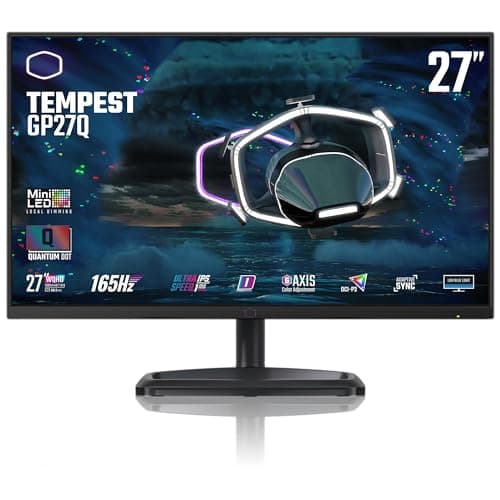
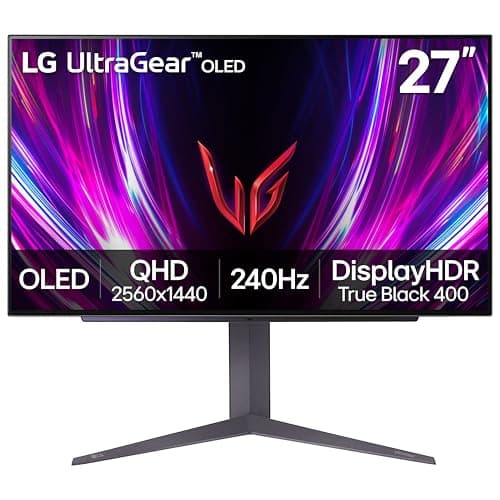
Two picks here attack that properly. The Tempest GP27Q uses a mini-LED backlight with local dimming zones, which is the mechanism that makes HDR work on an LCD. The 27GS93QE is OLED, where each pixel is its own light source and the contrast question stops existing. Treat any “HDR 1000” figure without a VESA DisplayHDR certification as a manufacturer rating, not a measurement — we flag those as rated throughout. Our HDR monitor roundup goes deeper on what each tier certifies.
Size, and the thing people get wrong
Every pick here is 27 inches, and that is deliberate rather than lazy. A console is usually played from further back than a PC, so the instinct is to go bigger — but if the monitor is on a desk, 27 inches at 1440p is roughly 109 pixels per inch, which is the sweet spot where text is sharp and you are not turning your head to track the edges of the frame. Go to 32 inches at 1440p and density drops to about 93 PPI, which is visibly softer at desk distance. Our monitor size guide has the arithmetic for your own viewing distance.
One last practical note. Consoles output 16:9, so an ultrawide monitor will letterbox an Xbox with black bars down both sides. That is not a defect and there is no setting that fixes it — it is why no ultrawide appears on this page, even though we rank them elsewhere.
Which one, by what you own and what you play.
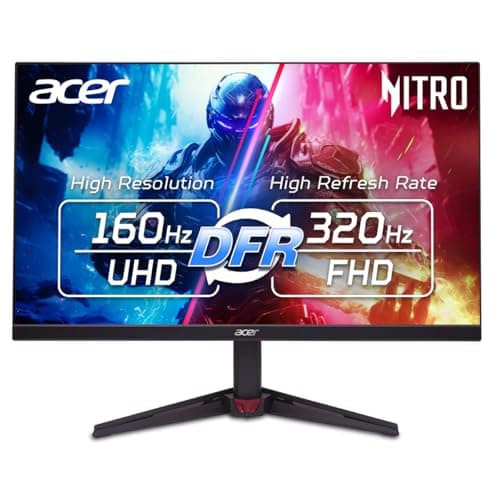
Series X, mostly single-player: the Acer Nitro VG270K V4. 4K is the mode those games are built for, and this is the cheapest way to get a 4K panel that is not also slow.
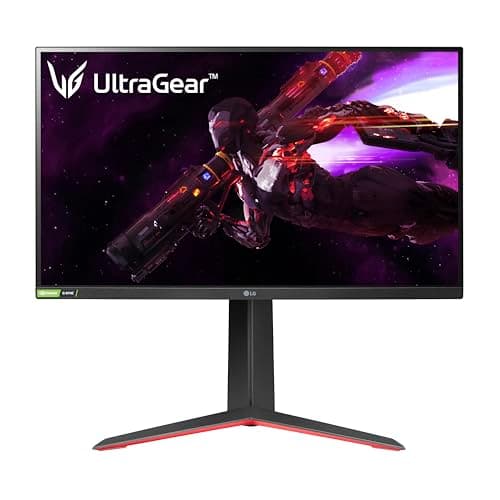
Series X, mostly competitive: the LG UltraGear 27GP850-B. Run the console at 1440p120 and take the smoothness instead of the pixels.
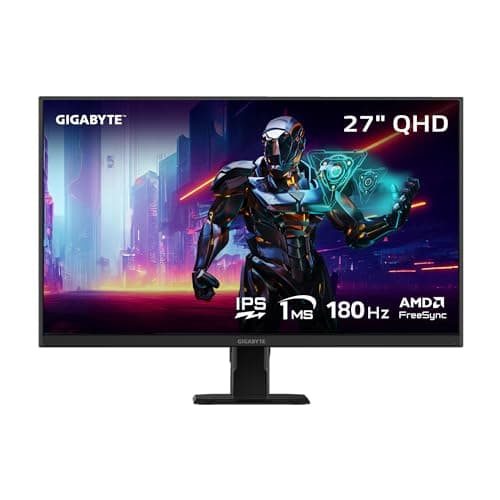
Series S, any budget: the GIGABYTE GS27QA if money is tight, the 27GP850 if it is not. A 4K panel is wasted on this console.
HDR games are the reason you are buying: the Cooler Master Tempest GP27Q. Mini-LED local dimming is the feature that makes HDR mean something on an LCD.
You want the best picture here and the price is acceptable: the LG UltraGear 27GS93QE. OLED black levels are the one upgrade nothing else on this page can imitate.