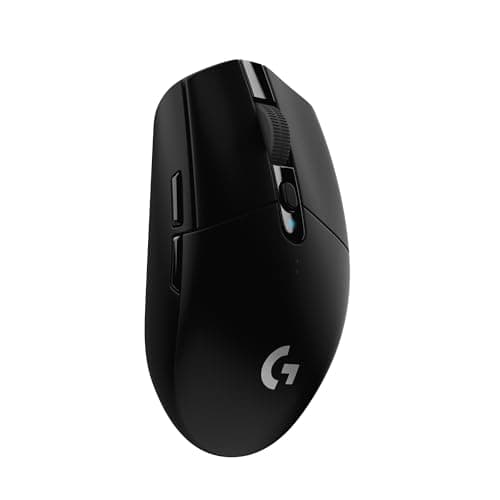
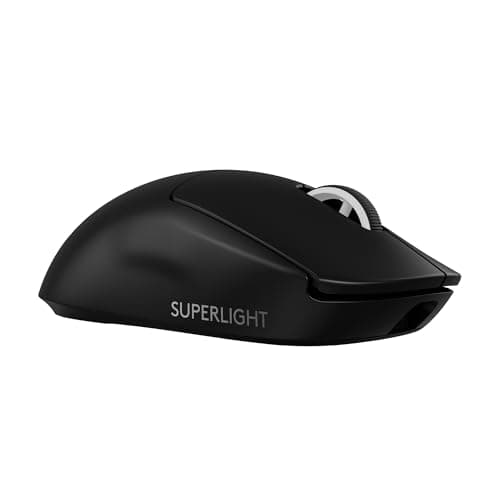
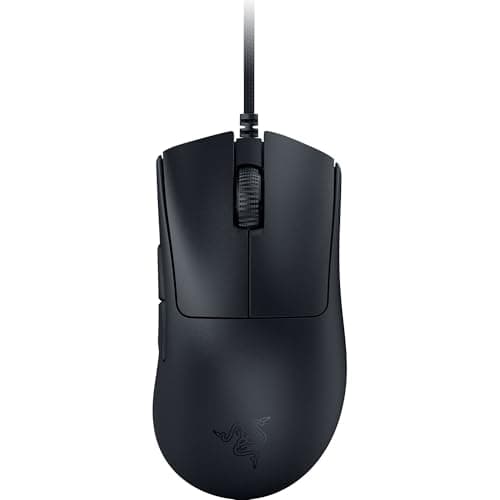
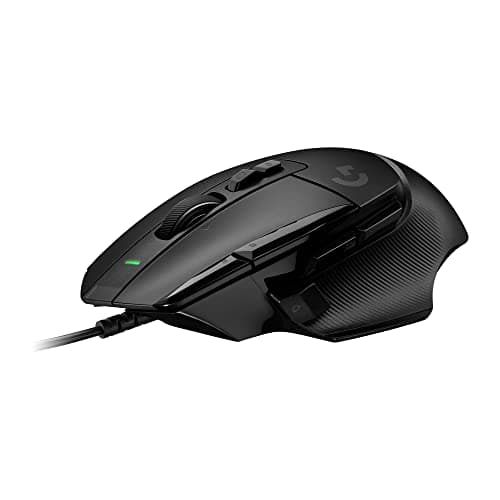
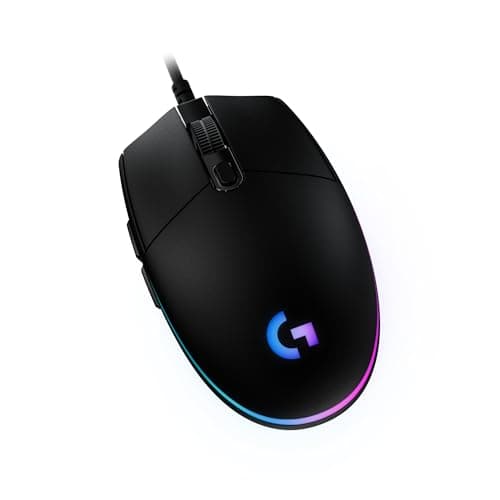
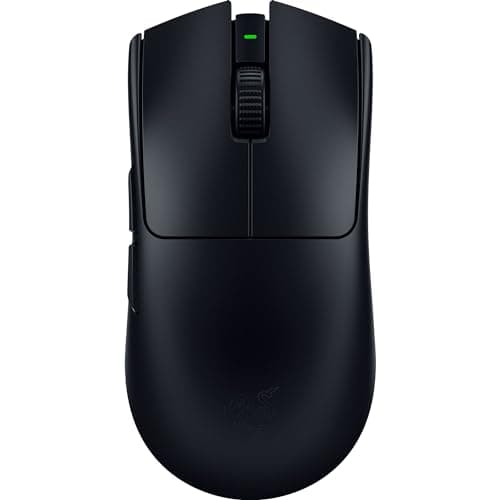
The gaming mouse industry has a problem it does not advertise: the sensors have been good enough for about a decade. A $25 mouse and a $160 mouse both track your hand accurately, at any speed you can actually move, with no measurable acceleration or smoothing. So the specs in the marketing — DPI ceilings, polling rates, IPS tracking limits — have become numbers that get bigger each generation without the experience changing. What still differs, enormously, is shape, weight and build. This page is ordered around that.
Every price here is pulled live from Amazon and stamped with the time we retrieved it. We do not run a testing lab and never claim to — our methodology page states exactly what our scores are and are not.
Step one: measure your hand, then find your grip
This is the only part of a mouse purchase where getting it wrong cannot be fixed by software, and it takes two minutes. Lay your hand flat and measure from the base of your palm to the tip of your middle finger, and across the widest point of your palm. Then work out which of the three grips you use:
Palm grip— your whole hand rests on the shell, fingers lying flat. Comfortable for long sessions, slower to make small corrections, and it needs a mouse long enough to fill your palm. Claw grip— palm touching the back, fingers arched. The most common grip among competitive players; it wants a shorter mouse with a pronounced rear hump. Fingertip grip— only your fingertips touch, palm floating. The fastest for small adjustments and the most tiring; it wants the smallest and lightest mouse you can find.
A mouse that fits your hand and grip will beat a better mouse that does not, every time. Roughly: hands under about 17cm long do best on small mice and often struggle with a G502-sized shell; hands over about 19cm will find most ultralight competitive mice too short to palm. Our grip styles guide has the measurements and the shape recommendations, and mice for small hands and mice for big hands are the pages for each end of that range. If your wrist or forearm already aches after long sessions, shape and repetitive strain are the things to solve before you look at any spec.
Step two: weight, which is the one upgrade you can feel
A decade ago a gaming mouse weighed 100 to 130 grams and some shipped with extra weights. The competitive scene went the other way, and it was right to: the mouse is accelerated and stopped by your arm or wrist thousands of times an hour, and less mass means less work and faster direction changes.
The practical bands are clear. Under about 60 grams is the ultralight competitive class, and the first time you use one after a conventional mouse the difference is unmistakable. Around 70 to 90 grams is normal and perfectly good. Above about 100 grams you are carrying mass you have no reason to carry, unless you specifically prefer a heavier feel — some players genuinely do, because a heavier mouse is steadier for slow tracking. Our lightweight vs heavy comparison takes that preference seriously rather than assuming lighter always wins, and best lightweight gaming mice ranks the sub-60-gram field.
Worth knowing: a cable contributes to perceived weight far more than its own mass, because it drags. A 75-gram wireless mouse feels lighter than a 65-gram wired one. That is most of the real argument for wireless, and our wired vs wireless guide covers the rest, including the price difference.
Step three: the sensor, which you can mostly stop thinking about
Every mouse on this page uses a modern optical sensor that tracks accurately at any speed a human arm produces. What you want from a sensor is boring and binary: no acceleration, no angle snapping, no smoothing, and tracking that holds up when you flick. All of these are satisfied across the entire price range now, and RTINGS measures them consistently if you want a given model checked.
DPI is the headline nobody should read. Dots per inch describes how many counts the sensor reports per inch of movement. A 30,000 DPI ceiling is meaningless because essentially nobody plays above 1,600, and most competitive players sit between 400 and 1,600 with in-game sensitivity doing the rest. A higher ceiling is not a better sensor; it is a bigger number. Our DPI explainer and sensitivity setup guide cover what to actually set.
Polling rate above 1,000Hz is a rounding error you can pay for. A 1,000Hz polling rate reports your position every millisecond, which is the long-standing USB standard for input devices. 8,000Hz cuts that to an eighth of a millisecond — a real reduction in input lag, and a trivially small one next to your display’s frame time and your own reaction time. It also costs battery and some CPU. Our polling rate guide has the arithmetic.
What actually breaks: switches, cables and feet
Mice do not usually die from their sensors. They die from their main click switches, which start double-clicking on a single press after a year or two of heavy use — mechanical switch bounce that software cannot reliably filter out. Optical main switches, which use a light beam instead of a metal contact, largely sidestep the failure mode, and four of the six picks here use them. Our double-clicking fix covers what to try when it happens anyway.
On a wired mouse the second failure point is the cable at the strain relief, which is why a flexible paracord-style cable is worth more than it sounds. The third is the PTFE feet, which wear flat and change how the mouse glides long before anything breaks — do mouse feet matter is the honest answer to that, and a worn pad does the same thing (best mousepads covers surfaces).
Specs you can safely ignore
DPI figures above 1,600. Nobody plays there. The ceiling is a marketing number.
IPS and acceleration limits (“650 IPS, 50G”). Both are far beyond what a human arm can produce. They have not been a differentiator for years.
“Laser” sensors as a premium feature. Optical won. See optical vs laser for why the laser era ended on tracking accuracy.
Onboard profile counts and RGB zones. Neither affects how the mouse performs. If anything, software bloat is a reason to prefer the simpler mouse.
Bluetooth as the wireless mode. For a mouse used on a desk, a 2.4GHz dongle is lower-latency and more reliable; Bluetooth is for a laptop bag. Our Bluetooth vs 2.4GHz guide covers the difference.
How we ranked these
Scores are judgments from documented research — published specifications from Logitech G and Razer, independent lab measurements from RTINGS where a model has been benched, and aggregated owner reports. They are not our own measurements. Every weight and polling figure here is the manufacturer’s own and is written that way.
The six picks answer six different questions: best overall, best value, best ultralight wireless, best ergonomic shape, best for lots of buttons, and cheapest worth buying. Each links to the page where we examine that bracket more closely.
Buying checklist
1. Measure your hand and name your grip before you look at a single mouse. Length from palm base to middle fingertip, and palm width. Palm, claw or fingertip. This narrows the field more usefully than any spec.
2. Pick the shape class next. Symmetrical for claw and fingertip grips and for anyone who switches; ergonomic right-hand with a rear hump for palm grip and for long sessions; a tall button-heavy shell only if you genuinely want the extra controls.
3. Decide whether weight is worth paying for. If you play competitive shooters for hours, sub-60 grams is a real and noticeable upgrade. If you do not, it is a preference, and the money is better spent elsewhere.
4. Treat the sensor as solved. Any mouse on this page tracks accurately. Do not pay for a DPI ceiling, an IPS figure or an acceleration limit.
5. Check the switch type if you click a lot. Optical main switches avoid the double-click failure that ends most mice. It is the single most useful durability spec on the listing.
6. Budget for the surface. A good mouse on a worn or undersized pad is a worse experience than a cheap mouse on a good one, and a large cloth pad costs a fraction of any mouse here. Our mousepad sizing guide covers how much desk you actually need.